

Version: 1.1
Date: August 24, 2026
Audience: Customers, prospects and external users
Platform: airepscore.ai
Related: docs/AIREPSCORE_FRAMEWORK_v1.0.md, docs/SUBSCRIPTION_PLANS.md
Knowledge Hub: #how-to/airepscore-user-guide (EN + NL via language switcher)
About this document
This guide walks you through AIRepScore from registration to running scans, reading results, and upgrading your plan. It is written for marketing, strategy, brand, and consulting users who want to understand how AI systems perceive and recommend their brand — not for platform administrators.
Each section references sample screenshots where helpful. Screenshots live under /ui/assets/uploads/ using the playbook-XX-*.png naming convention.
Screenshot convention:
📸 SCREENSHOT: playbook-XX-filename.png Description of what should be visibleInterpretation disclaimer
AIRepScore results are indicators of how AI systems perceive and recommend a brand at a given point in time. They are intended for strategic intelligence and should not be used as the sole basis for business, legal, financial or procurement decisions.
AIRepScore measures AI perception — what large language models know, understand, and structure about your brand from their training data (and, where applicable, live web search). It does not measure objective truth, SEO visibility, social media performance, customer satisfaction, market share, or brand awareness.
When reading scores, always consider them together with Confidence, Consistency, model divergence, and your project context (region, sector, B2B/B2C profile, and peer set).
Table of contents
- What is AIRepScore?
- Plans at a glance
- Access & registration
- First login & welcome
- Understanding the interface
- Create a project
- Set up peers & competitors
- AI Credibility scan
- AI Brand Perception scan
- AI Positioning
- AI Recommendation
- Overview module
- Scan queue (scheduled scans)
- Profile & account
- Upgrading to a paid plan
- Collaborating with colleagues
- Sample projects (demos)
- Frequently asked questions & troubleshooting
- Screenshot index
- Quick-start checklist
1. What is AIRepScore?
AIRepScore measures how AI systems (ChatGPT, Claude, Gemini, Mistral, Perplexity) perceive, position, and recommend your brand or organization. It does not measure SEO, social media, or customer satisfaction — only AI perception.
The platform is built around four modules that follow a clear analytical progression:
| Module | Core question | What it tells you |
|---|---|---|
| AI Credibility | How credible, clear, and relevant is your brand in the eyes of AI? | Foundational advice-worthiness: does AI see the brand as clear, credible, trustworthy and relevant enough to recommend? |
| AI Brand Perception | How do AI models internalize your brand positioning and associations? | Positioning and associations: what does AI believe the brand stands for? |
| AI Positioning | How do you perform against 4–9 peer brands? | Peer comparison: how does AI position your brand versus realistic alternatives? |
| AI Recommendation | How often and how strongly does AI recommend your brand in concrete scenarios? | Scenario-based recommendation likelihood in spontaneous and assisted modes. |
Analytical progression:
Reputation → Can AI recommend the brand? Brand Perception → For what reasons or contexts would AI recommend it? Comparison → How does AI position it versus peers? Recommendation → Does AI actually recommend it in concrete scenarios?Recommended first journey:
| Step | Action |
|---|---|
| 1 | Create a project with accurate brand, region, and B2B/B2C settings |
| 2 | Add peers (realistic market alternatives) |
| 3 | Run AI Credibility |
| 4 | Review Reputation dimensions, Confidence, and Consistency |
| 5 | Upgrade — or explore Brand Perception and Comparison via sample projects |
| 6 | Run Brand Perception (AIRepScore Monitor and above) |
| 7 | Configure peers and view Comparison |
| 8 | Use Recommendation on Monitor or Enterprise |

Diagram or homepage section “AIRepScore Framework” showing the four layers (Reputation → Perception → Comparison → Recommendation).
2. Plans at a glance
New accounts automatically start on the Free scan plan. There is no automatic end date — the account stays free until you upgrade or AIRepScore terminates the account (see terms).
| Free scan | AIRepScore Monitor | Enterprise | |
|---|---|---|---|
| Price | Free | €99/month (intro pricing may apply) | Custom (from €1,200/month) |
| Projects | 1 | 1 | ∞ |
| Users | 1 | 3 | ∞ |
| Scans / month | 1* | 40 | ∞ |
| AI Credibility | ✓ | ✓ | ✓ |
| Brand Perception | — | ✓ | ✓ |
| AI Positioning | — | ✓ | ✓ |
| AI Recommendation | — | ✓ | ✓ |
| Weekly scheduling | — | ✓ | ✓ |
| Checkout | — | Stripe (self-service) | Contact sales |
* 1 AI Credibility scan on the free scan plan — your low-threshold entry point to discover how AI sees your brand.
Important: All four modules remain visible in the navigation at every plan level. If a module is not included in your plan, you see a clear explanation in the module itself plus a link to Upgrade plan — this is intentional, not an error. It helps you understand the full AIRepScore framework and what becomes available when you upgrade.
Legacy plans: Some existing customers remain on Starter or Professional (grandfathered). New sign-ups follow Free scan → AIRepScore Monitor → Enterprise.
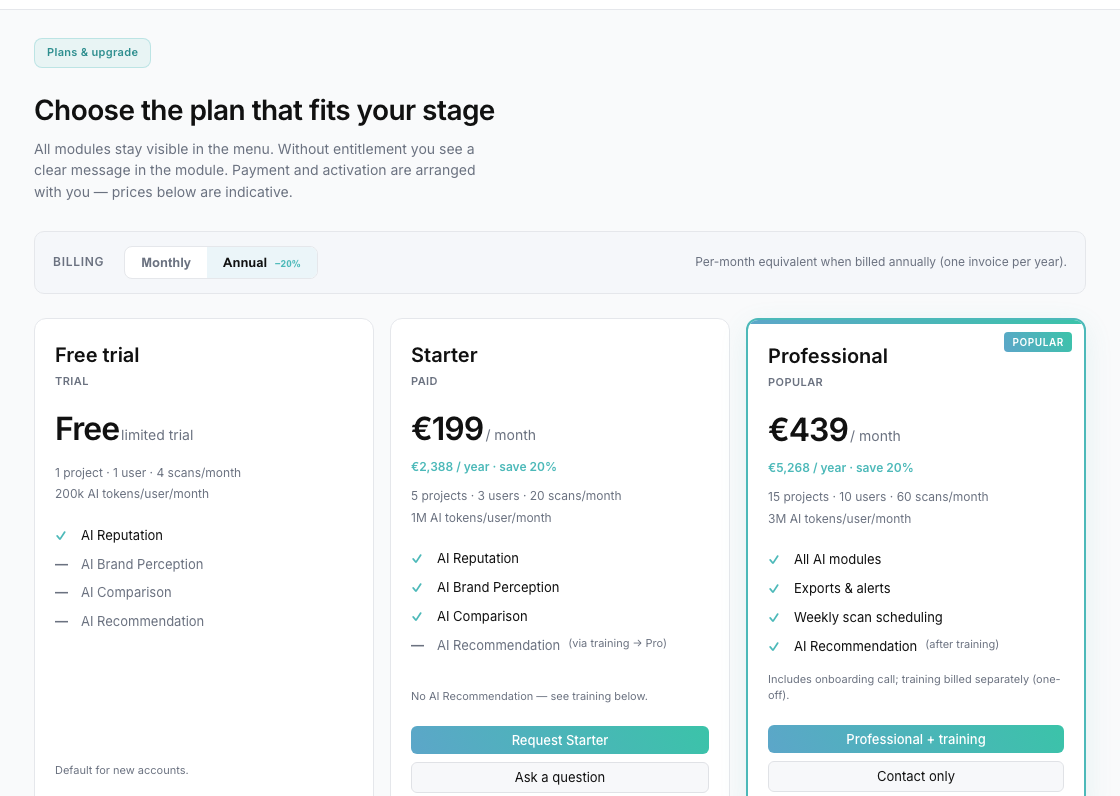
“Plans & upgrade” page with the three plan cards (Free scan, AIRepScore Monitor, Enterprise) and the current plan highlighted.
3. Access & registration
3.1 Getting access
Depending on when you join, access may be invitation-based or self-service:
| Path | How to register |
|---|---|
| Invitation | Use the registration link from your AIRepScore invitation email |
| Self-service | Sign up freely via the homepage or login page |
If you received an invite, open the link in the email (format: https://airepscore.ai/register?token=…).
3.2 Registration via invitation
Step 1 — Open the invitation link
You receive an email with a link such as:
https://airepscore.ai/register?token=XXXXXXXX📸 SCREENSHOT: playbook-03-invite-email.png
Example invitation email with the registration link.
Step 2 — Accept your invitation
- The link opens the “Accept your invite” screen
- Your email address is fixed (not editable)
- Optionally enter your full name
- Click “Send sign-in code”
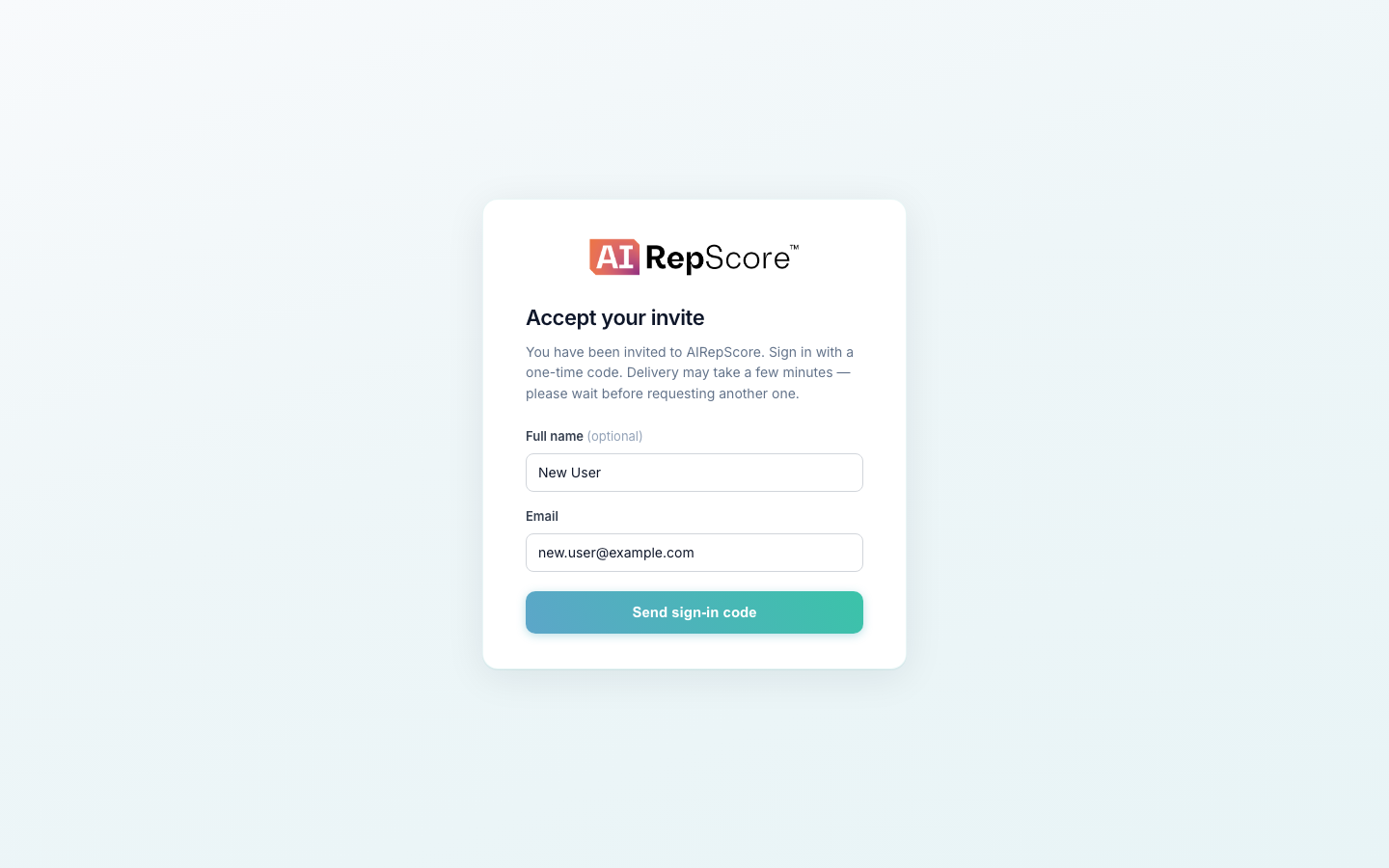
Registration screen with pre-filled email address and sign-in code button.
Step 3 — Verify with OTP code
- Check your inbox (spam folder too)
- You receive a 6-digit code (valid for 10 minutes)
- Enter the code on the “Check your inbox” screen
- Check “I agree to the Terms and Conditions”
- Click “Verify”
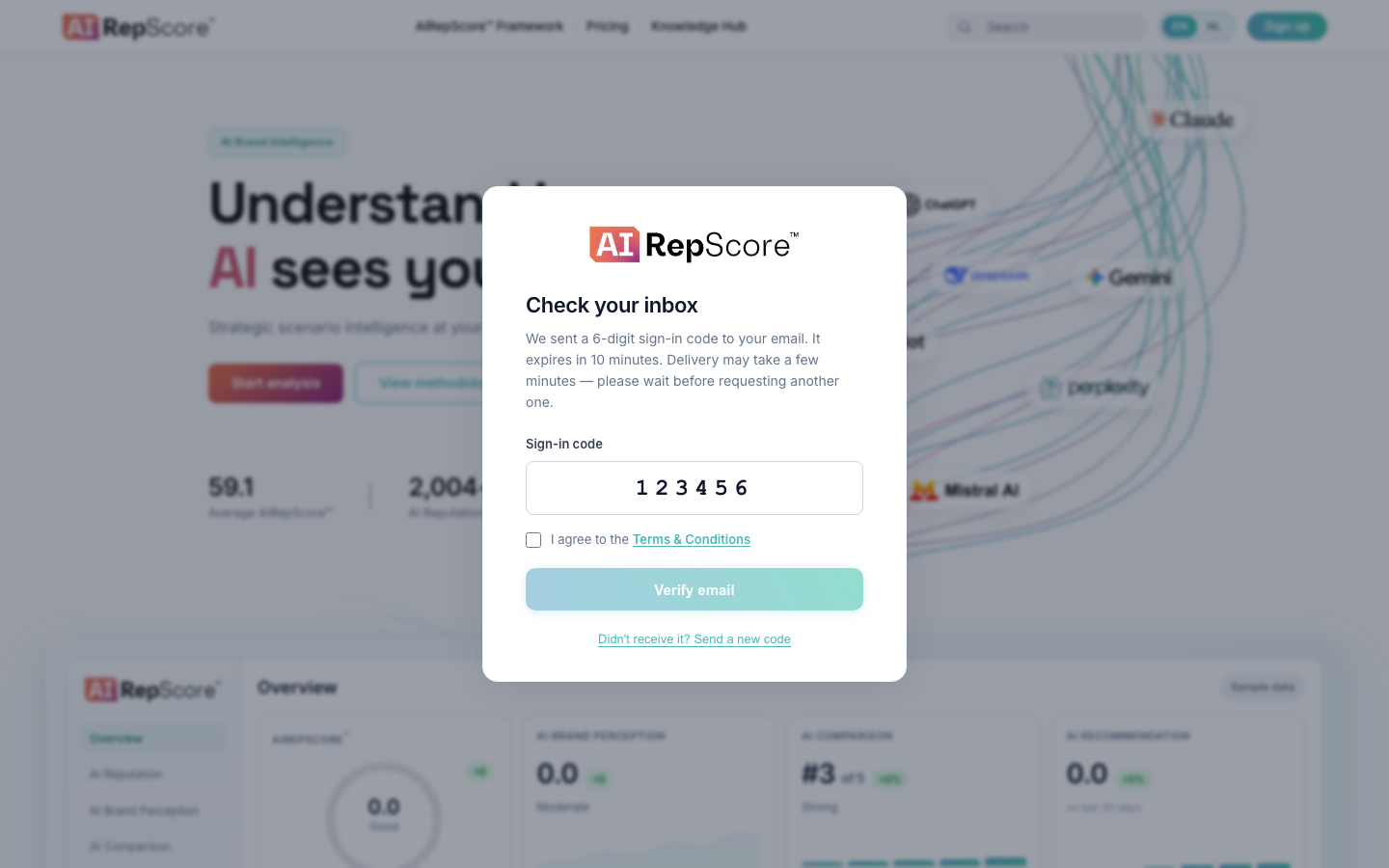
OTP entry screen with terms checkbox.
Step 4 — Account is created
After verification:
- An organization (your workspace) is created automatically
- You are assigned to the Free scan plan
- You are logged in via a secure session (no password needed)
3.3 Logging in (existing users)
- Go to airepscore.ai and click Log in
- Enter your email address
- Click “Send sign-in code”
- Enter the 6-digit code
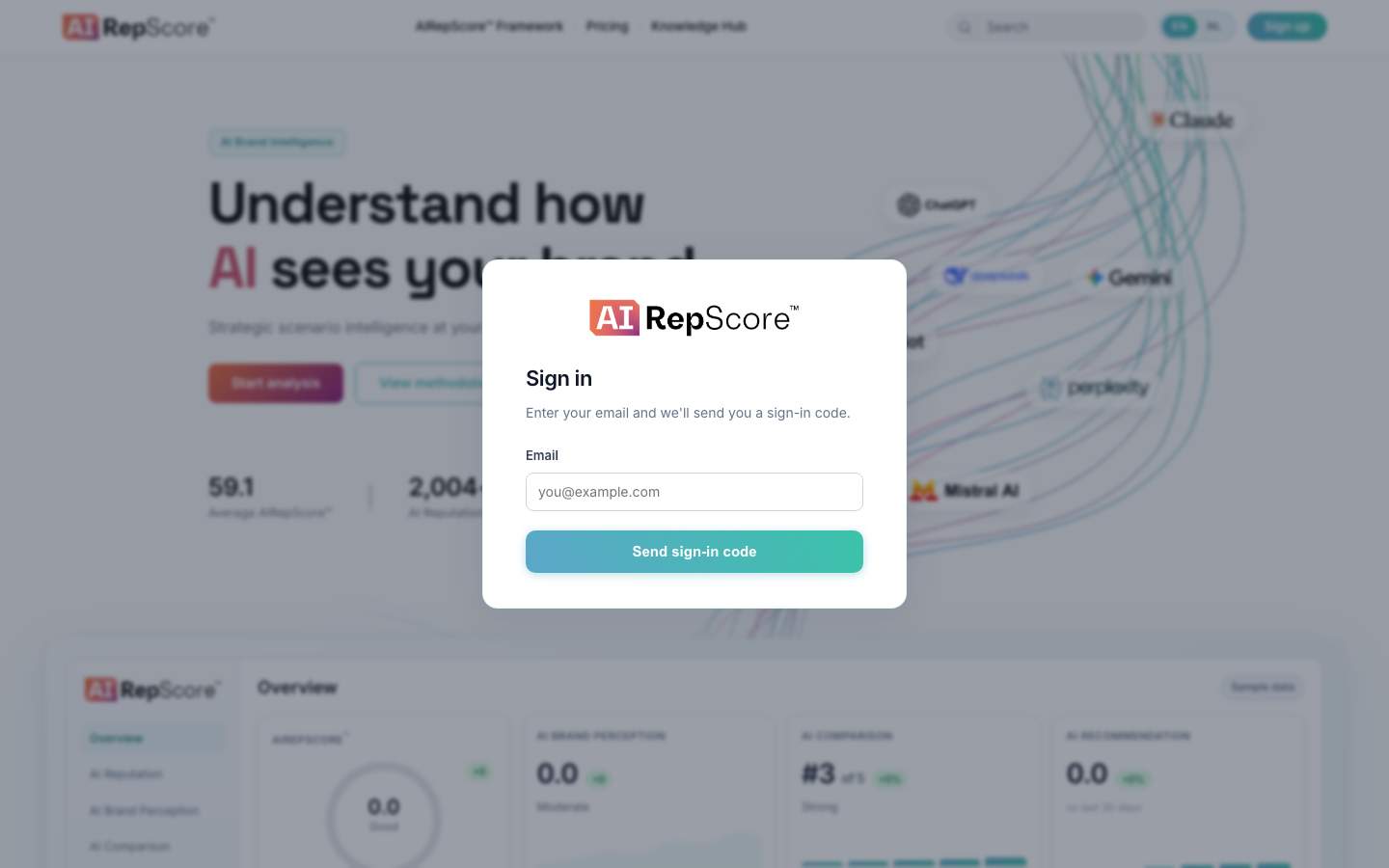
Login screen with email field and “Send sign-in code” button.
Note: AIRepScore uses passwordless login (OTP via email). There is no password to remember.
3.4 Self-service registration
When self-service registration is available:
- Go to the homepage
- Scroll to “Sign up now and measure your AIRepScore for free!”
- Enter your email and click “Send sign-in code”
- Follow the same OTP steps as above
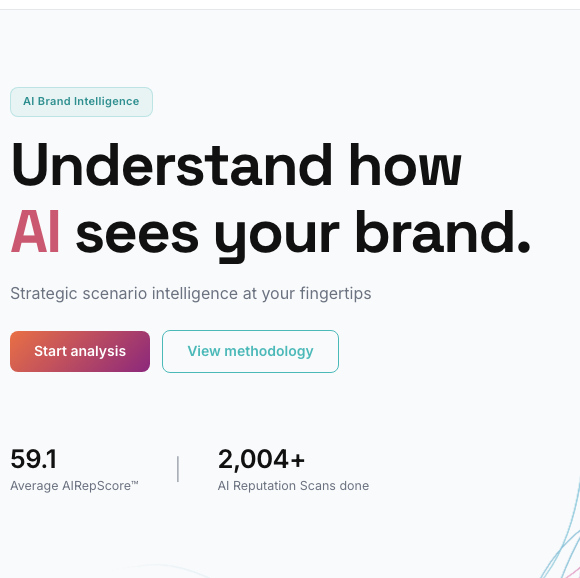
Homepage with sign-up CTA at the bottom of the page.
4. First login & welcome
4.1 Welcome screen
On your first login, a welcome message appears:
“Create your own project to measure your AIRepScore™, or explore the two sample projects (Rijksmuseum and IKEA) that are ready for you.”
What now? You have two options:
| Option | When to choose |
|---|---|
| A. Explore sample projects | Explore the platform first without running your own scan |
| B. Create your own project right away | You want to measure your own brand immediately |
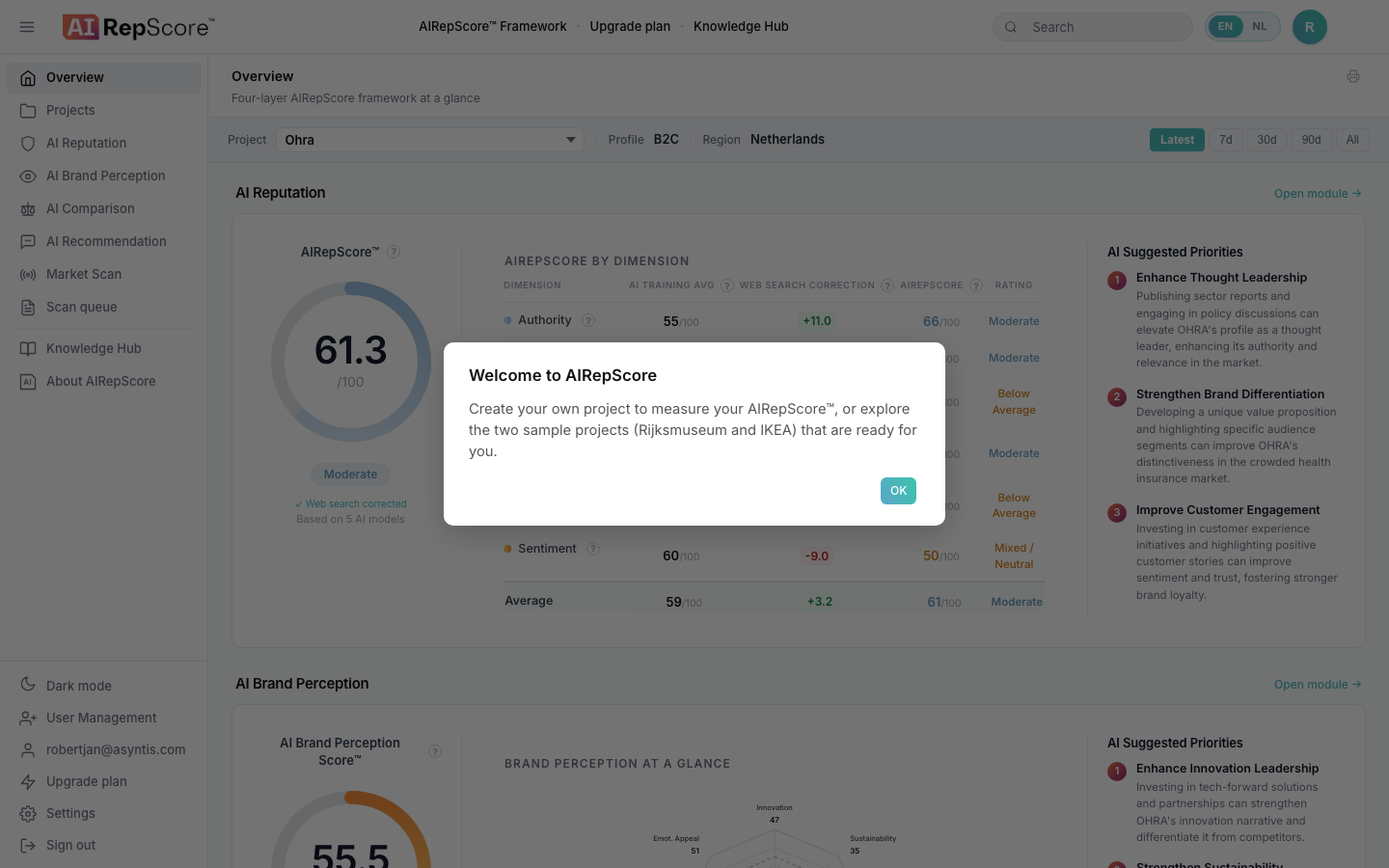
Welcome popup after first login.
4.2 First look at the app
After the welcome screen, you land in the logged-in app with:
- Left sidebar — navigation to all modules
- Top bar — language, profile menu, dark mode
- Module header — title + brief explanation of the active module
If you do not yet have your own project, a sample project (Rijksmuseum or IKEA) is automatically set as the active project.
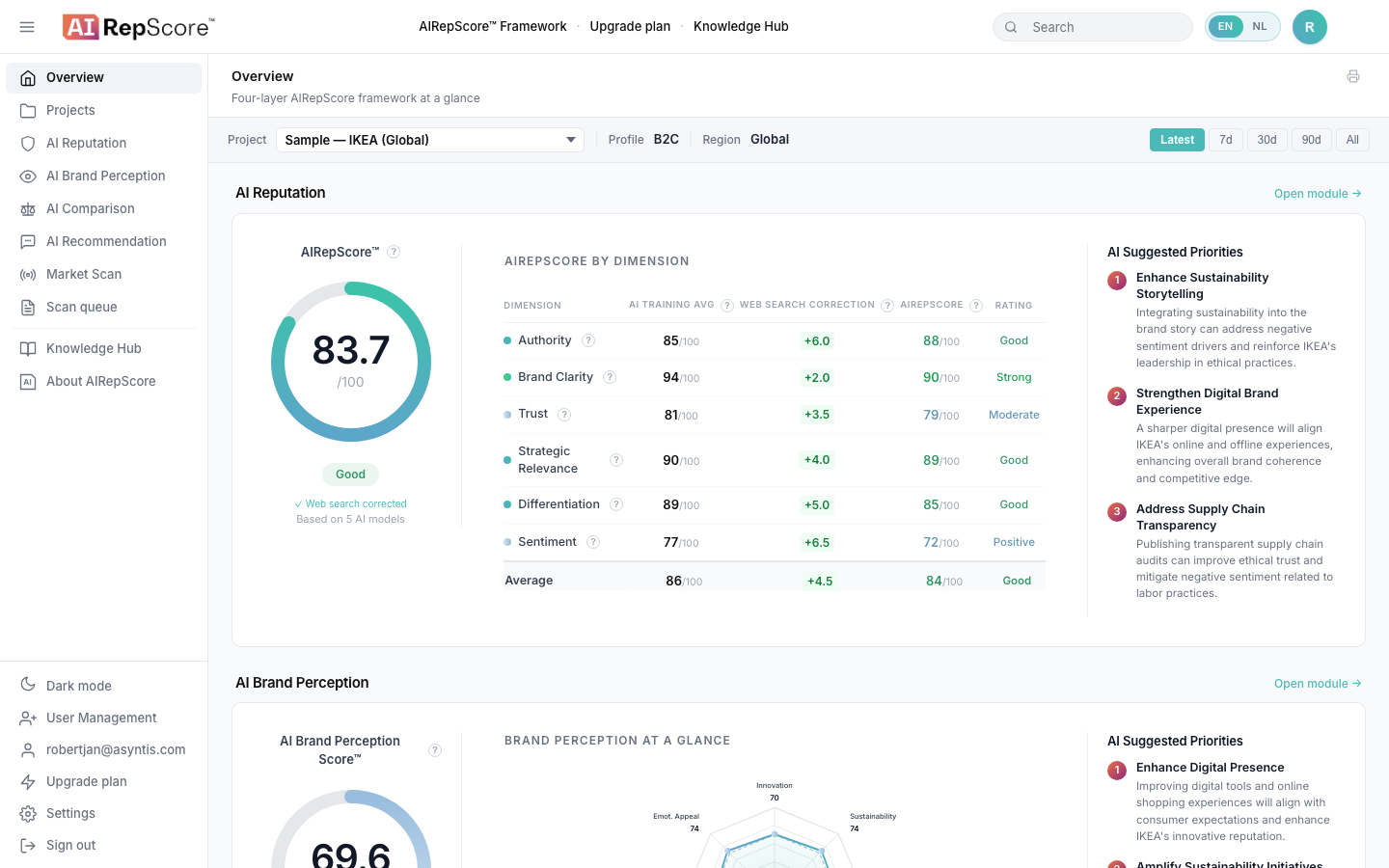
Full app layout with sidebar, top bar, and module content (e.g. Overview).
5. Understanding the interface
5.1 Main navigation (sidebar)
| Menu item | Function |
|---|---|
| Overview | All four modules in one dashboard |
| Projects | Create and manage projects |
| AI Credibility | Core reputation scan |
| AI Brand Perception | Positioning & associations |
| AI Positioning | Peer comparison |
| AI Recommendation | Scenario-based recommendation test |
| Scan queue | Schedule and queue scans |
| Knowledge Hub | Methodology, FAQ, legal |
| About AIRepScore | Framework explanation |
Account menu (bottom of sidebar or via profile icon):
| Item | Function |
|---|---|
| My profile | Account details and language |
| Upgrade plan | Plan comparison and upgrade request |
| Log out | End your session |
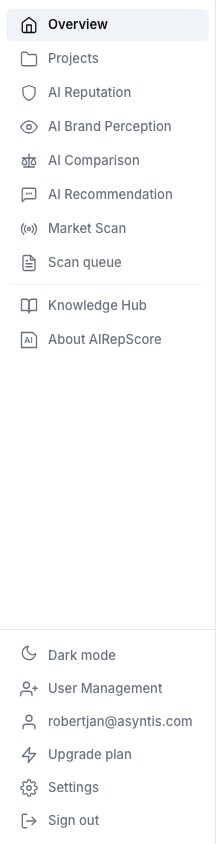
Sidebar with all menu items, one item highlighted as active.
5.2 Context bar (in scan modules)
At the top of each scan module, you see a context bar with:
- Project — dropdown to switch projects
- Profile — B2B or B2C
- Region — configured region of the project
- Last scan — date/time of last session
- Models — number of active AI models used in scoring
- Period filter — Latest / 7d / 30d / 90d / All
- Start scan — primary action button

AI Credibility context bar with project dropdown and “Start scan” button.
5.3 Language
- Interface: Dutch or English (toggle in top bar or Profile)
- AI scan results (narratives, reasoning): remain English
- URL /nl/ for Dutch marketing pages

Language selector EN | NL in the top bar.
6. Create a project
A project is the analysis context for one brand or organization. Everything you scan is tied to a project. Accurate project setup is essential — incorrect naming or profile settings can skew how results should be interpreted.
6.1 Go to Projects
- Click Projects in the sidebar
- You see a project list on the left and the detail panel on the right
📸 SCREENSHOT: playbook-13-projects-empty.png
Projects page with empty list and text “Select a project or create a new project”.
6.2 Create a new project
- Click + New (top right in the project list)
- Fill in the form under Core:
| Field | Required | Example | Notes |
|---|---|---|---|
| Project name | ✓ | Acme Corp — AI Credibility 2026 | Internal label for your workspace — use something your team will recognize |
| Organization | ✓ | Acme Corporation | The brand AI should evaluate. B2B: company name. B2C: consumer brand or product name |
| Website URL | — | https://www.acme.com | Optional but recommended — helps AI models anchor the correct entity and reduces ambiguity with similarly named organizations |
| Region | ✓ | Netherlands or Global | Determines market context and regional model weighting in your scores |
| Sector | ✓ | Technical wholesale | Industry or category — used to contextualize AI evaluation |
| Primary language | — | Dutch | Primary language of brand communication |
| Business Type | ✓ | B2B or B2C | Determines dimension weights and model weight profile |
- Click Save
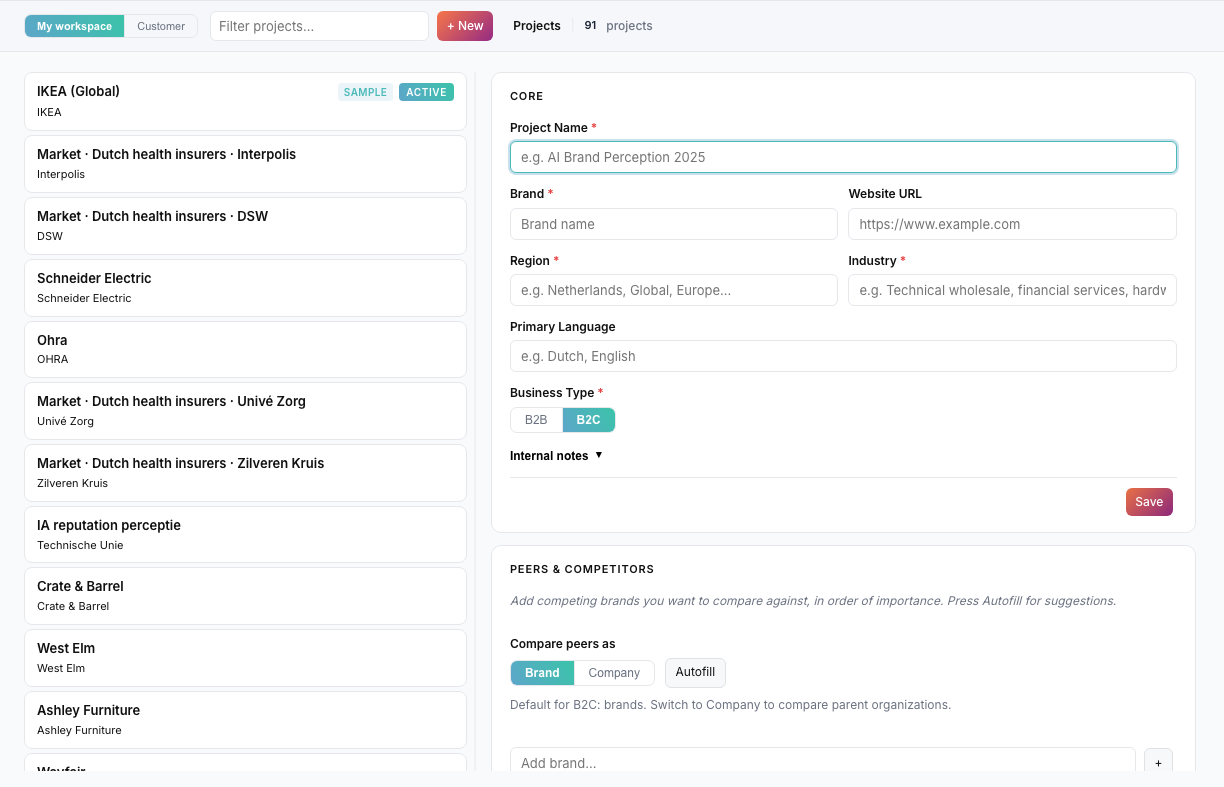
New project form, Core section, with filled fields and B2B/B2C toggle.
Project name vs. Organization name
- Project name is for your internal navigation (e.g. “Q2 2026 tracking — Acme NL”).
- Organization is what AI models evaluate. Use the name AI would recognize in conversation.
Company name vs. brand/product name
- B2B: use the legal or trading company name (e.g. Siemens, Deloitte).
- B2C: use the consumer-facing brand (e.g. IKEA, not the parent holding company), unless you deliberately measure corporate reputation.
Why Region matters
Region selects the market context for model weighting. A B2B project in the Netherlands uses different weights than a B2B Global project, reflecting how AI ecosystems are used in that market.
Why B2B/B2C matters
B2B and B2C profiles apply different dimension weights. B2B emphasizes Authority and Trust; B2C emphasizes Brand Clarity and Differentiation. Choosing the wrong profile can misrepresent what matters most for your brand type.
How wrong setup affects interpretation
If Organization name is ambiguous, Region does not match your market, or B2B/B2C is incorrect, scores may reflect a different entity or context than you intend. Always verify the context bar before starting a scan.
6.3 Activate project
- Select your project in the left list
- Click Activate (if not already active)
- The project gets an Active badge — this is your working project across all modules
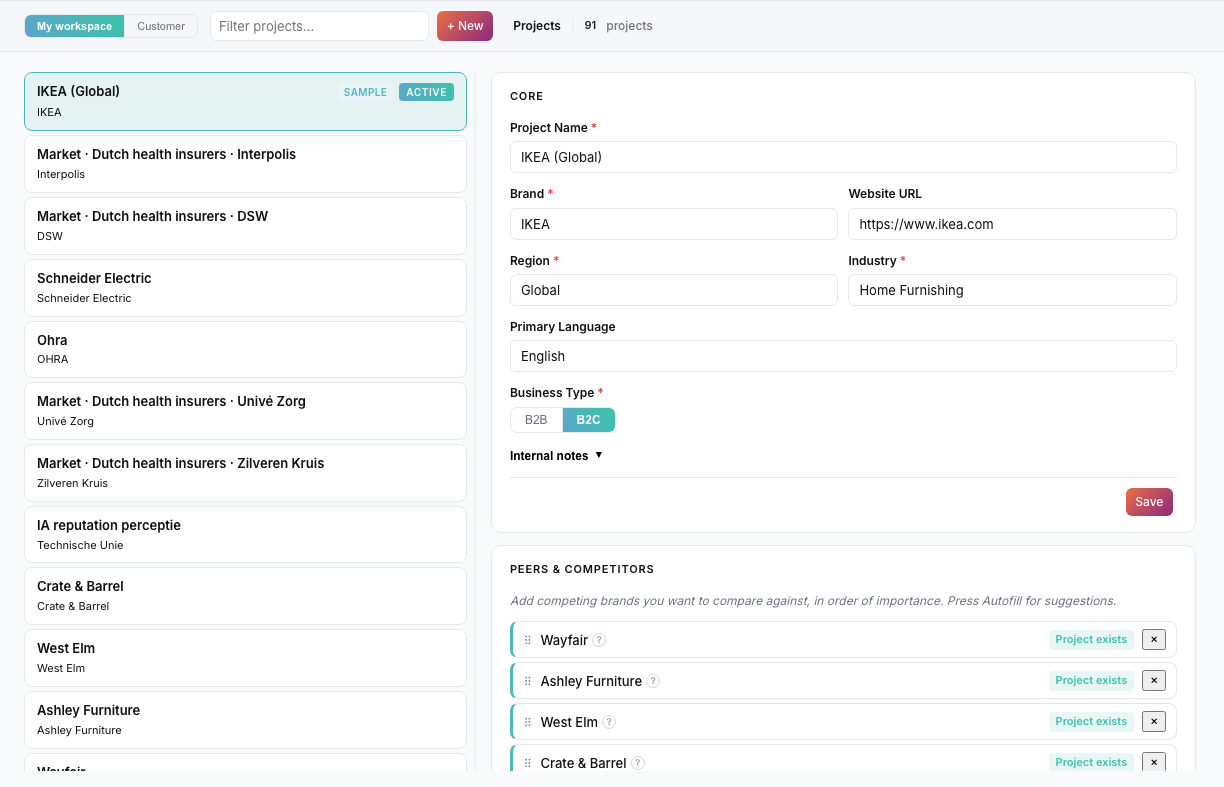
Project list with one project marked as “Active”.
6.4 Free scan limit
On the free scan plan, you can create a maximum of 1 project. To unlock all four modules, weekly scheduling, and higher scan limits, upgrade to AIRepScore Monitor.
6.5 Internal notes (optional)
Under Internal notes (collapsible), you can capture context for your team. These notes are not used in scans.
6.6 AI models used in scans
Scans use AI models configured centrally for your project's market context (B2B/B2C profile and region). You do not need to configure models yourself. The active models appear in the context bar. AIRepScore typically evaluates across GPT, Gemini, Claude, Perplexity, and Mistral — see Model weighting for how these contribute to your scores.
7. Set up peers & competitors
Peers are brands or organizations you compare against. They matter because:
- AI Positioning requires peer projects with their own scan data
- Differentiation (in AI Credibility) is best interpreted relative to realistic alternatives
- Peers should be genuine market alternatives your buyers or audience would consider — not aspirational brands from unrelated categories
Use 4–9 peers for AI Positioning (recommended: 4). More than 4 peers uses more monthly scan capacity.
7.1 Add peers in Projects
In the project detail, Peers & Competitors section:
- Type a competitor name in the input field
- Click + to add
- Optional: click Autofill — AI suggests competitors based on sector and region
- Choose Compare peers as: Brand (product name) or Company (company name)
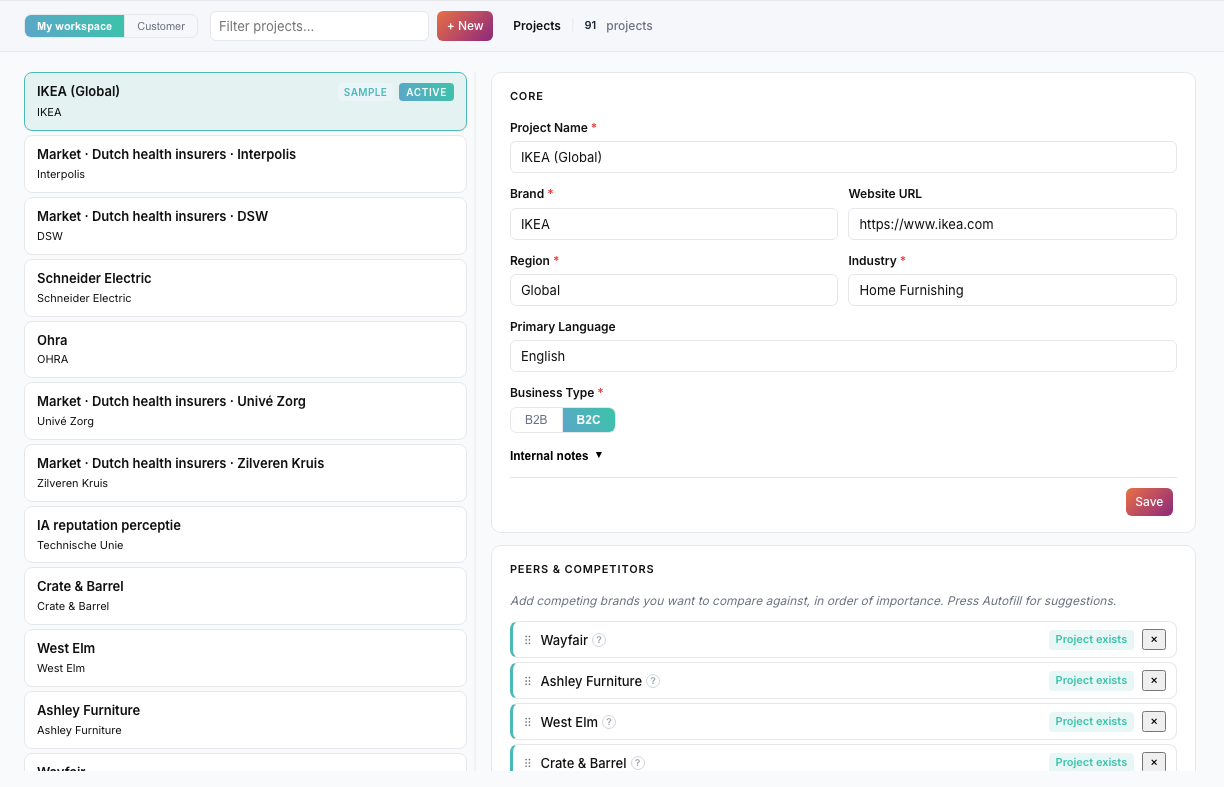
Peers & Competitors section with 3 filled peers and Autofill button.
Why peer projects matter
AI Positioning aggregates existing AI Credibility and Brand Perception sessions. For meaningful comparison, each peer needs its own project with completed scans. If a peer has no scan data, that brand will appear empty in Positioning until scans are run.
Brand vs. company for peers
Use the same logic as your primary project: consumer brands for B2C comparisons, company names for B2B comparisons. Consistency across your peer set improves interpretability.
7.2 Configure peers for AI Positioning
You can also link peers directly from the AI Positioning module (see §10).
8. AI Credibility scan
Module: AI Credibility
Plan: available on all plans (including free scan)
Duration: a few minutes (depending on number of models)
8.1 What does this scan measure?
AI Credibility evaluates whether AI systems see your brand as a credible, clear, and relevant reference point — the foundation for recommendation.
Six dimensions (each 0–100):
| Dimension | What it measures |
|---|---|
| Authority | Category authority and reference-point status — would AI cite you as a credible expert in your field? |
| Brand Clarity | Whether AI understands who the brand is and what it does — can AI describe your brand in one sentence? |
| Trust | Whether AI sees the brand as credible and safe to recommend — would a cautious stakeholder consider you trustworthy? |
| Strategic Relevance | Whether AI sees the brand as relevant in the market or category — would AI mention you unprompted in a market overview? |
| Differentiation | Whether AI can explain what makes the brand different from alternatives — best interpreted with peers configured |
| Sentiment | Overall reputational tone in AI knowledge — positive, negative, or mixed |
Plus meta-indicators:
- Consistency — agreement across AI models (not included in the overall score)
- AI Confidence — how certain models are about their knowledge of your brand
Authority vs. Expertise
Authority belongs to AI Credibility and measures whether AI sees the brand as a credible reference point in its category. Expertise belongs to Brand Perception and measures whether AI associates the brand with specialist knowledge or thought leadership. A brand can score high on Trust but low on Expertise, or vice versa.
8.2 Start a scan
Requirements:
- Active project selected
- Scan limit of your plan not reached
Steps:
- Go to AI Credibility
- Check project and profile in the context bar
- Click Start scan
- Wait while models run (progress bar visible)
📸 SCREENSHOT: playbook-19-air-scan-progress.png
Scan progress screen with spinner, model name, and progress bar.
Free scan: you have 1 AI Credibility scan — your entry scan to discover how AI perceives your brand.
AIRepScore Monitor and Enterprise: all four modules, up to 40 scans per month on Monitor (unlimited on Enterprise), and weekly scheduling.
8.3 Reading results — Overview tab
After completion, the dashboard appears with tabs Overview, Models, History.
Overview includes:
| Section | What you see |
|---|---|
| Hero | Overall AIRepScore™, rating (Strong / Good / Moderate / …) |
| AI Intelligence Signals | Consistency + AI Confidence with explanation |
| AIRepScore per dimension | 6 dimension scores with trained average, web search correction, and final score |
| Model Comparison Matrix | Heatmap: model × dimension |
| AIRepScore™ Trend | Score over time |
| Sentiment analysis | Positive/negative drivers + web signals |
| Strategic analysis | AI synthesis of your reputation position |
| Prioritized improvement opportunities | Concrete actions, ranked |
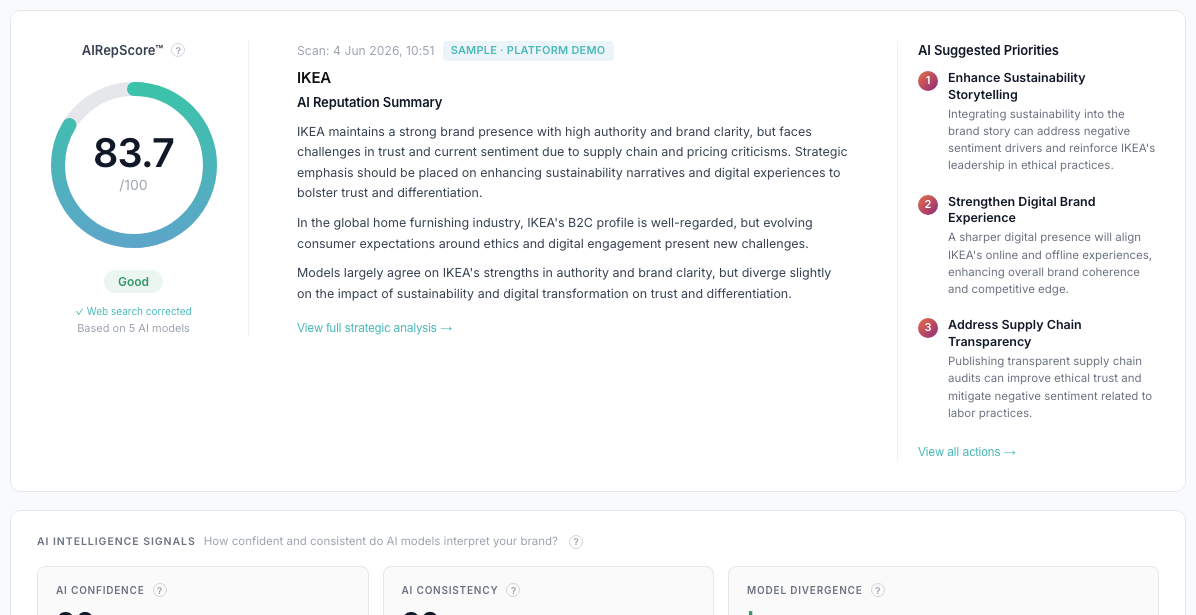
AI Credibility overview with hero score, AI summary and suggested priorities (sample project IKEA).
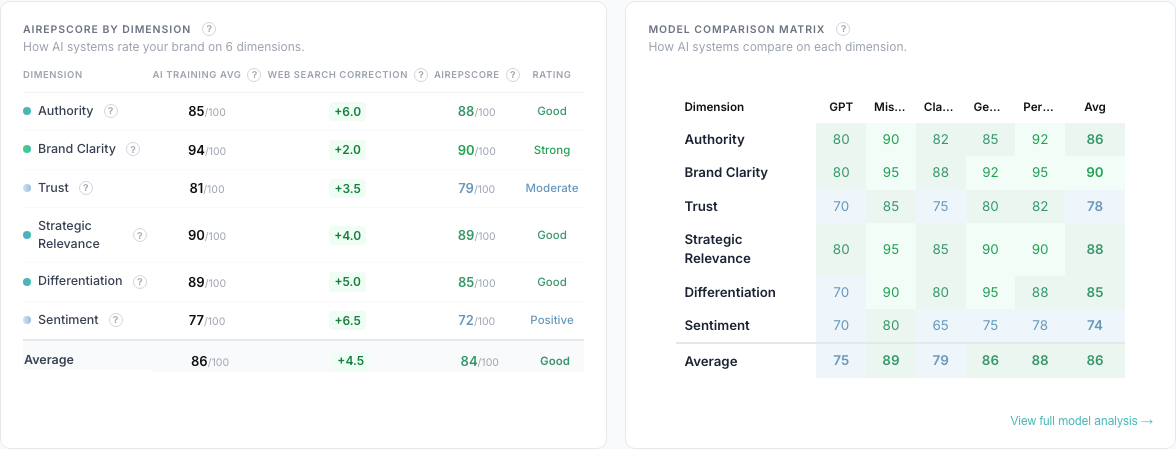
Model Comparison Matrix and AIRepScore per dimension side by side.
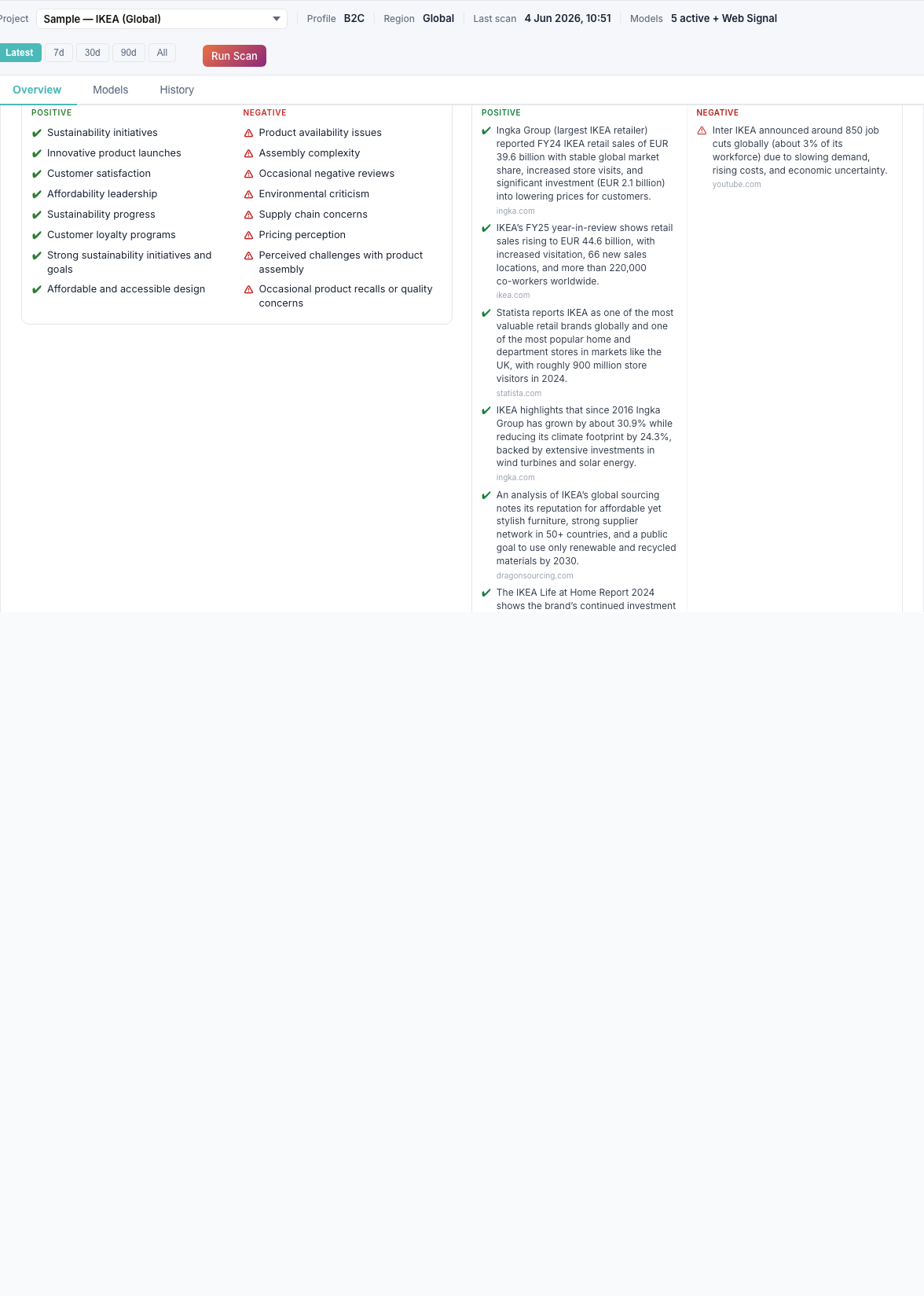
Sentiment analysis + Prioritized improvement opportunities.
8.4 Models tab
Per AI model you see:
- Individual dimension scores
- Reasoning (max. 3 sentences per dimension)
- Strengths / weaknesses (or sentiment drivers)
- Recommended actions
- Confidence per dimension (high / medium / low)
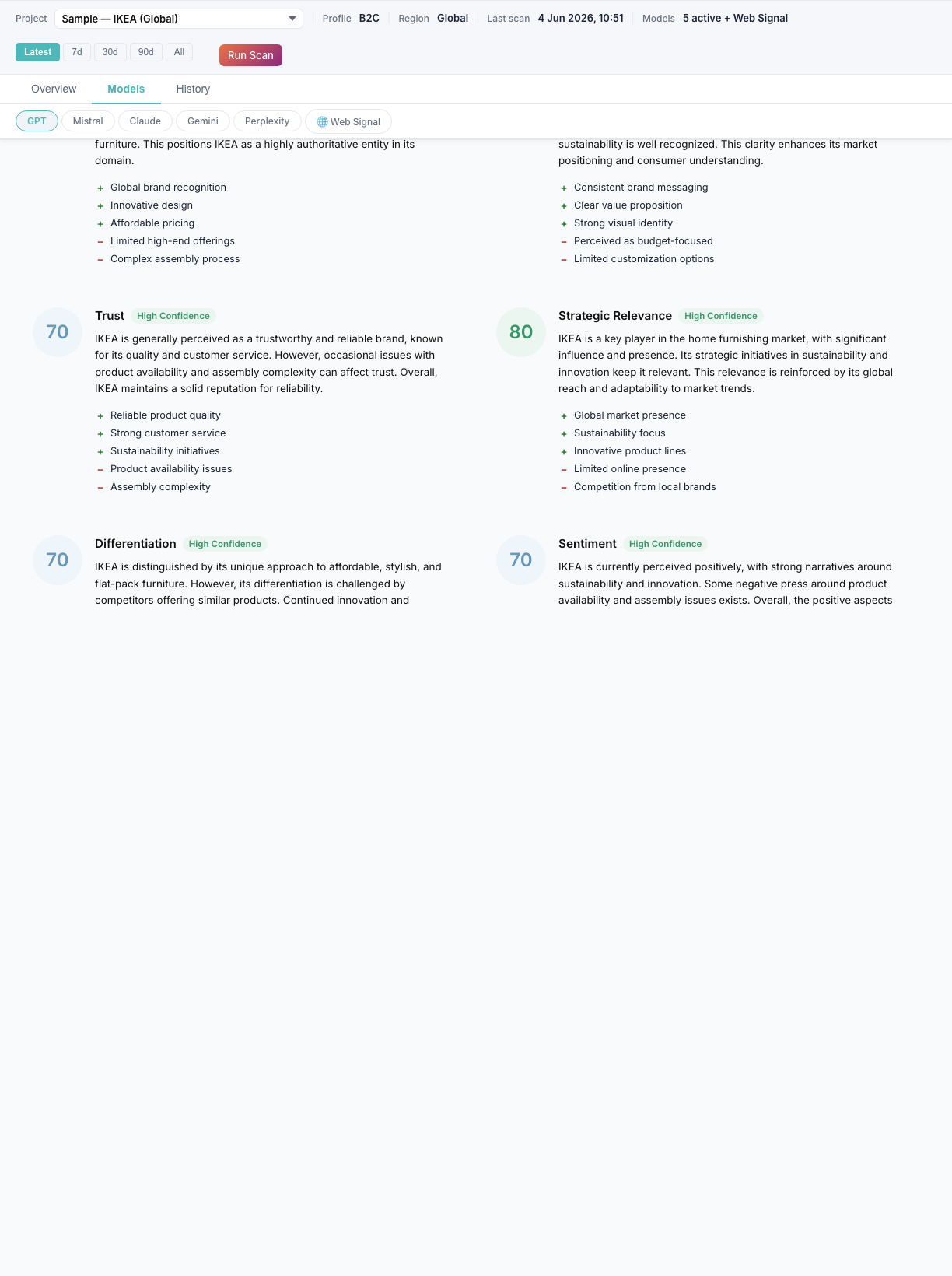
Models tab with GPT selected and dimension detail visible.
8.5 History tab
All previous scan sessions with date, overall score, and model count. Click a session to load those results.

History tab with list of scan sessions.
8.6 Live Web Signal & Web Search Correction
After the trained-data scan, AIRepScore may run a Live Web Signal Assessment (via Perplexity). This produces Web Search Correction values per dimension, visible in the dimension overview. Web search corrections reflect recent web signals relative to training-data scores — they suggest how live information may differ from what models learned during training.
8.7 Model weighting
AIRepScore aggregates scores across multiple AI models using model weights configured for your project's market context (B2B/B2C and region).
Model weights represent expected influence of an AI ecosystem on brand discovery, comparison and recommendation within a specific market context. They do not represent model quality or technical performance.
| Model | Why it matters |
|---|---|
| GPT (OpenAI) | Highly weighted due to ChatGPT, Microsoft Copilot, and many enterprise integrations |
| Gemini (Google) | Important because of Google Search, Workspace, Android, and consumer-facing AI reach |
| Claude (Anthropic) | Especially relevant for knowledge work, analysis, and professional use |
| Perplexity (Perplexity AI) | Especially relevant for research, market analysis, product comparison, and business decision support |
| Mistral (Mistral AI) | Relevant for Europe, sovereign AI, and enterprise implementations |
Current model weights by profile:
| Model | B2C Global | B2B Global | B2B Netherlands |
|---|---|---|---|
| GPT | 0.40 | 0.40 | 0.45 |
| Gemini | 0.30 | 0.25 | 0.15 |
| Claude | 0.10 | 0.20 | 0.10 |
| Perplexity | 0.15 | 0.15 | 0.20 |
| Mistral | 0.05 | 0.05 | 0.10 |
Weights are applied automatically based on your project's Business Type and Region. You do not configure these yourself.
9. AI Brand Perception scan
Module: AI Brand Perception
Plan: AIRepScore Monitor and Enterprise (free scan: blocked — explore via sample projects)
9.1 What does this scan measure?
Brand Perception is not sentiment analysis. It measures positioning associations — what AI believes your brand stands for across eight perception dimensions:
| Dimension | Meaning |
|---|---|
| Innovation | Perceived innovation capability |
| Sustainability | ESG / sustainability associations |
| Customer Centricity | Perceived customer focus |
| Premium Positioning | Premium vs. commodity positioning |
| Affordability | Accessibility / value-for-money |
| Reliability | Dependability and track record |
| Expertise | Domain expertise and thought leadership |
| Emotional Appeal | Emotional resonance and brand personality |
Plus: Dominant Associations (3–8 emergent themes), positioning map, and brand summary.
A brand can be trusted (AI Credibility) but not seen as innovative, sustainable, or premium (Brand Perception). The two modules answer different questions:
- AI Credibility: Can AI recommend this brand?
- Brand Perception: For what reasons or contexts would AI recommend it?
9.2 Access on free scan
On the free scan plan, you see a plan-blocked message with explanation and link to upgrade. You can explore the module via sample projects (Rijksmuseum, IKEA).
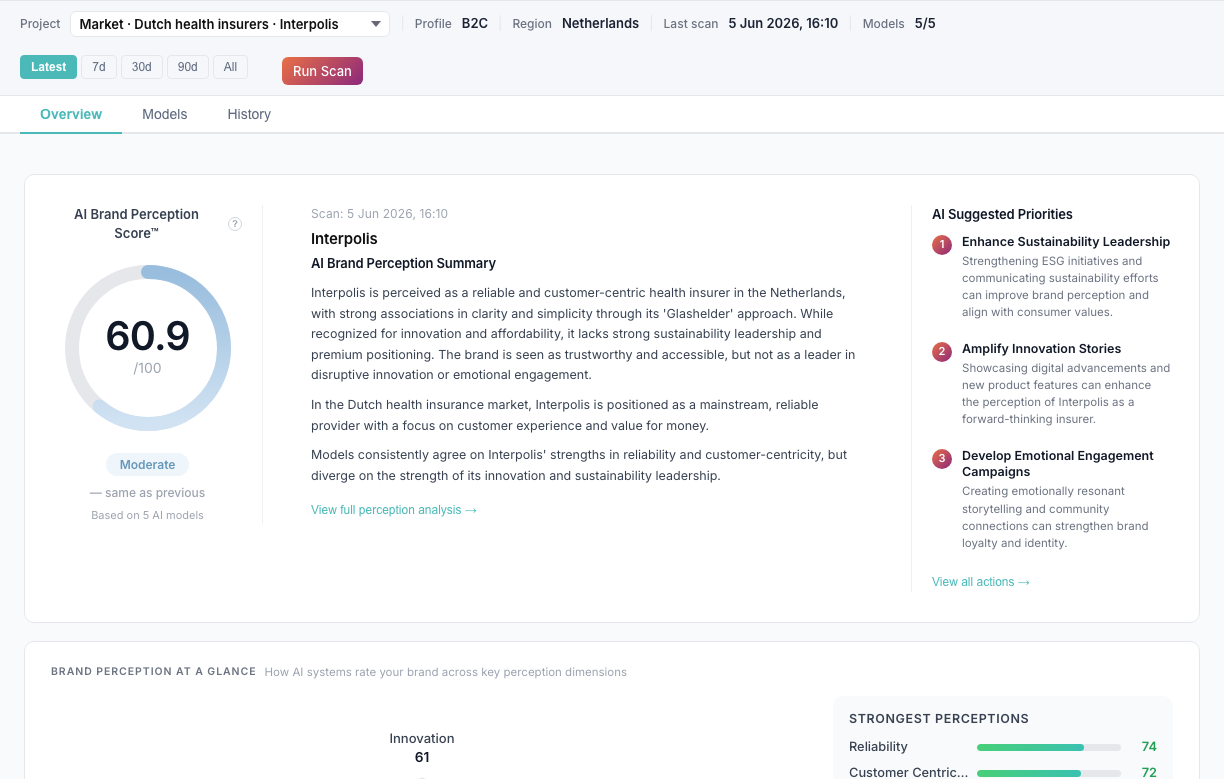
Brand Perception with plan-blocked message and upgrade link (free account).
9.3 Start a scan (paid plan)
- Run AI Credibility first (recommended — establishes baseline context)
- Go to AI Brand Perception
- Select your project
- Click Start scan
📸 SCREENSHOT: playbook-26-bp-scan-progress.png
Brand Perception scan progress.
9.4 Reading results
| Section | Content |
|---|---|
| Brand perception at a glance | Radar chart with 8 dimensions |
| Positioning map | X: Innovation, Y: Premium Positioning |
| Perception distribution | Bar chart across all dimensions |
| Perception per dimension | Detail per dimension with signals/gaps |
| Brand association landscape | Dominant associations across models |
| Brand perception trend | Development over time |
| Strategic brand analysis | Synthesis + positioning risks |
| Prioritized brand opportunities | Actions to improve perception |
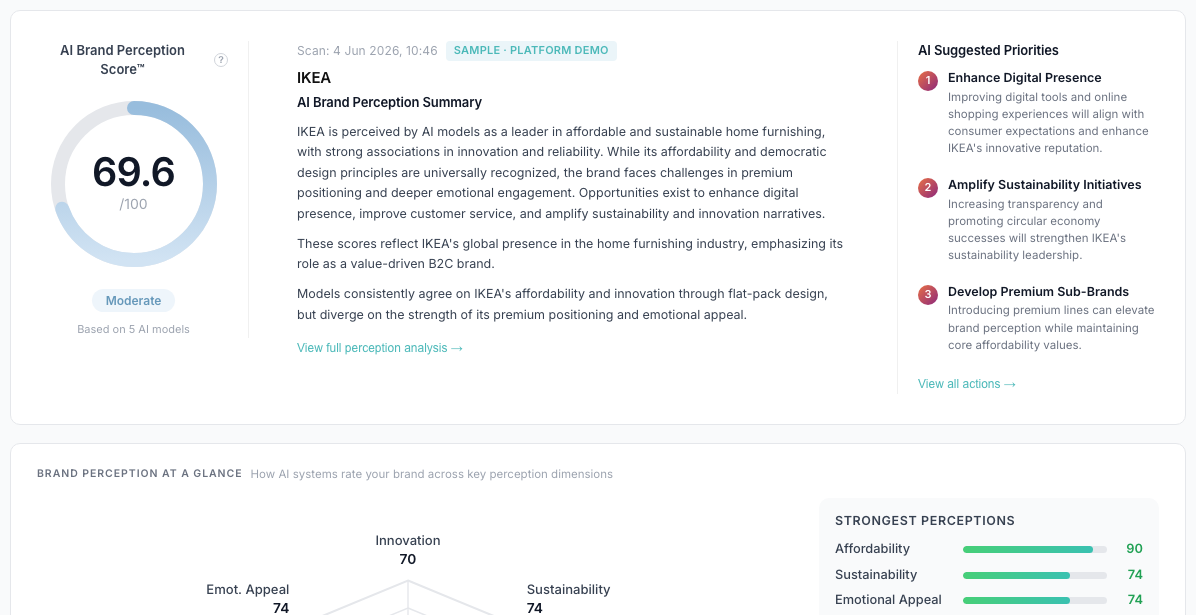
Brand Perception overview with radar and positioning map.
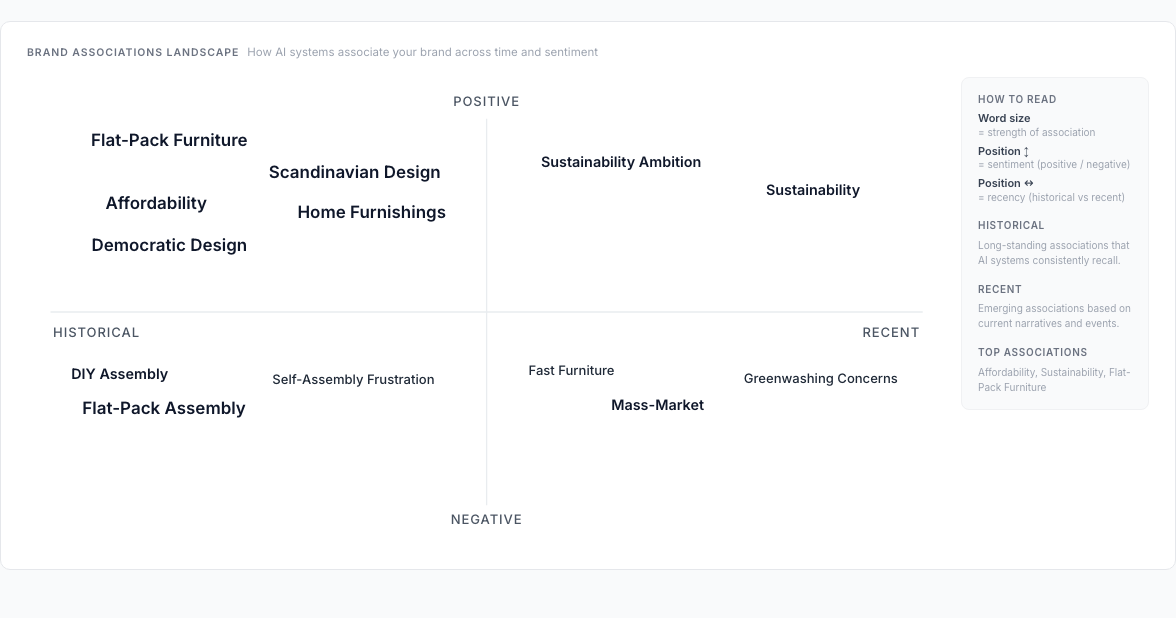
Brand association landscape with themes and sentiment.
10. AI Positioning
Module: AI Positioning
Plan: AIRepScore Monitor and Enterprise
Type: Aggregation layer — no new AI calls
AI Positioning does not run new AI model calls. It aggregates existing AI Credibility and Brand Perception sessions. If results are missing, run scans for your primary project and each peer first.
10.1 Requirements
For meaningful results, you need:
- AI Credibility scan of your brand (primary project)
- Brand Perception scan of your brand
- The same scans for your peers (max. 4)
- Peers configured and linked
10.2 Configure peers
- Go to AI Positioning
- Click Configure peers
- Select 4–9 peer projects from the list (recommended: 4)
- Missing peer project? Choose + Create to create it
- Click Save peers or Save + queue
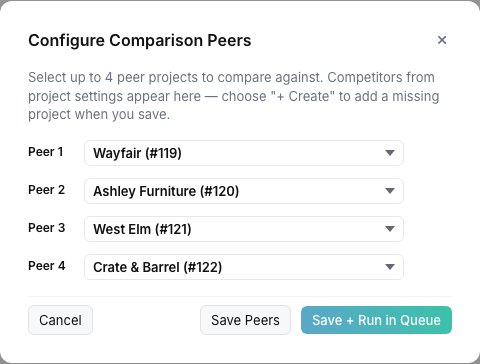
“Configure comparison peers” modal with 4 peers selected.
10.3 View comparison
With sufficient scan data, the dashboard loads automatically:
| Section | Content |
|---|---|
| Hero | Rankings on AIR + BP score, peer delta |
| Competitive positioning map | Authority/Trust vs. Differentiation/Innovation |
| Score distribution | AIR + BP per brand |
| AI Credibility — dimension matrix | Dimension-by-dimension table |
| Brand Perception radar | Peer-set comparison |
| Strengths & gaps | Top 4 above/below peer average |
| Association comparison | Dominant associations per brand |
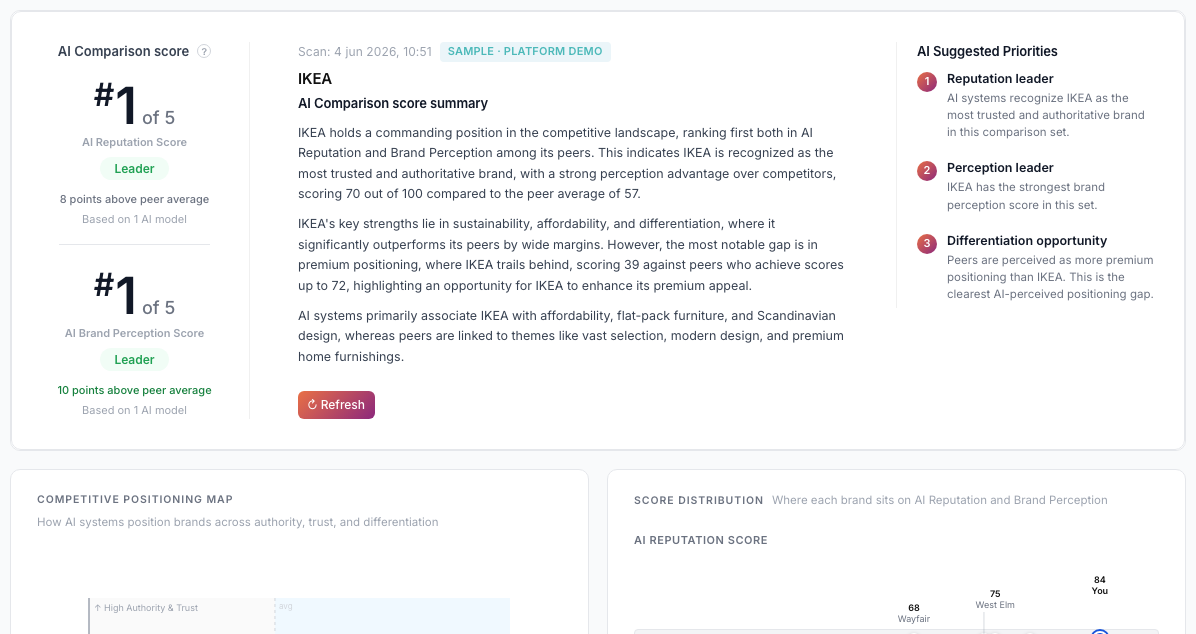
AI Positioning hero with rankings and positioning map.
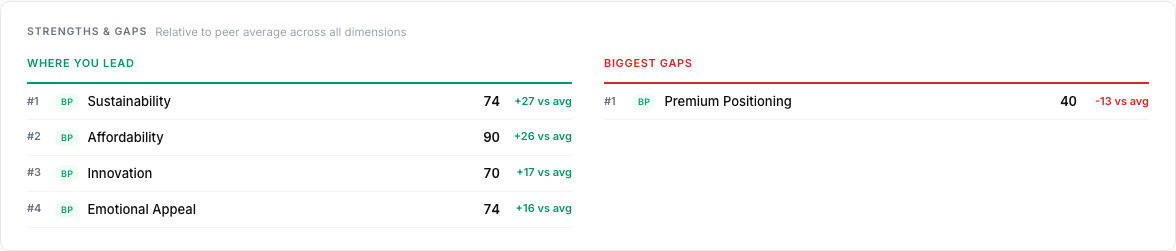
Strengths & gaps table relative to peer average.
Refreshing comparison data: Comparison has no own “Run Scan” button. Re-run AI Credibility and Brand Perception scans on individual projects to refresh positioning results.
11. AI Recommendation
Module: AI Recommendation
Plan: AIRepScore Monitor and Enterprise (free scan: blocked — explore via sample projects)
11.1 What does this scan measure?
In structured scenarios, AIRepScore tests how AI systems recommend your brand in realistic purchase or selection situations. This is not a prediction of customer behaviour — it measures AI recommendation patterns under specific use cases, personas, regions, and scenarios.
| Mode | What happens |
|---|---|
| Spontaneous | AI freely generates a top-5 brand ranking — is your brand included without being given a list? |
| Assisted | Your brand is in a peer list — how does AI rank it against alternatives when explicitly presented as a candidate? |
Overall Recommendation Score = 60% spontaneous + 40% assisted.
The Recommendation gap (assisted minus spontaneous) indicates whether your brand benefits from being explicitly named as a candidate — a positive gap suggests an acceptance effect; a negative gap may indicate stronger spontaneous recall than assisted ranking.
11.2 Preparation — Personas
- Go to the Persona Library tab
- Click + New Persona or Import (PDF/image)
- Fill in buyer persona: role, goals, frustrations, decision criteria
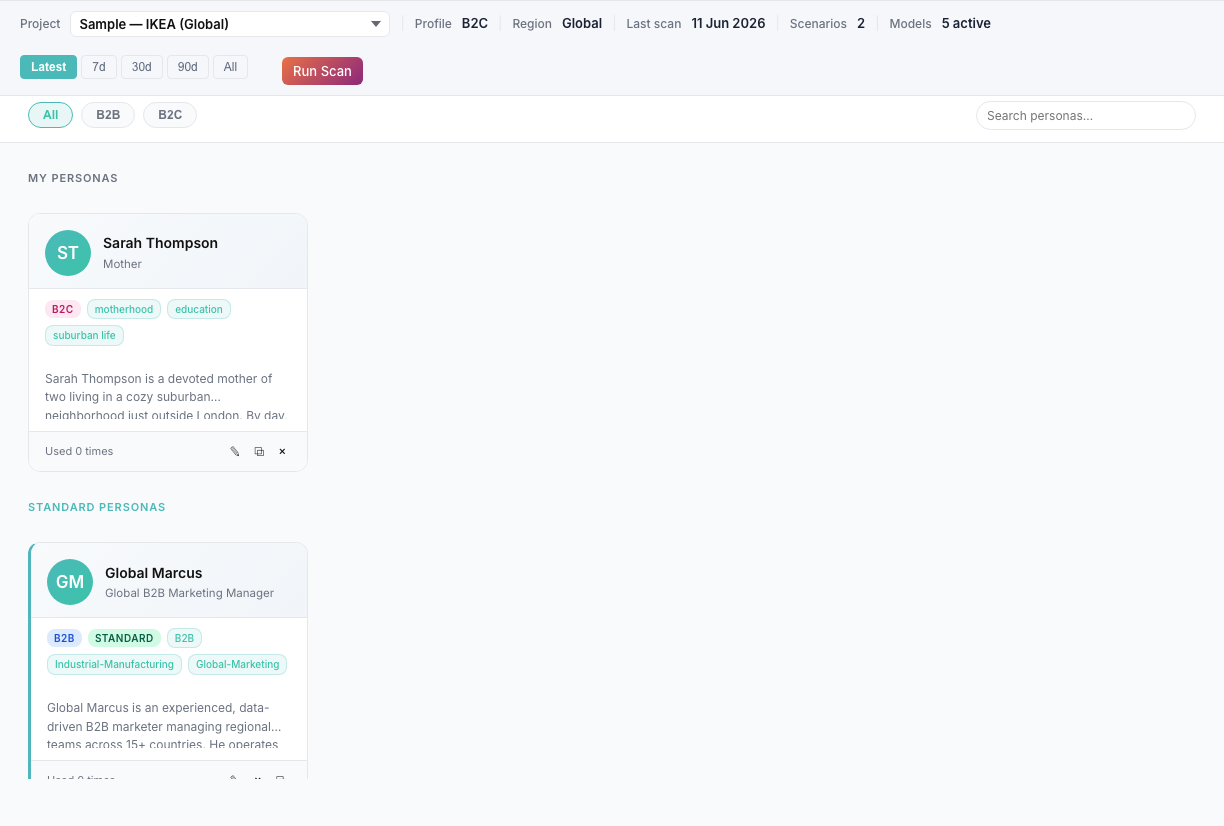
Persona Library with cards and B2B/B2C filter.
11.3 Build scenarios
- Go to the Scenario Builder tab
- Click + New
- Fill in:
| Field | Example |
|---|---|
| Scenario name | Enterprise IT director seeks CRM |
| Profile type | B2B |
| Region | Netherlands |
| Persona | Select from library |
| Situation | Describe the context |
| Category / need | CRM software evaluation |
| Decision context | Criteria (budget, integration, compliance) |
| Target brand | Your brand name |
| Constraints | Optional |
- Set status to Active
- Click Save
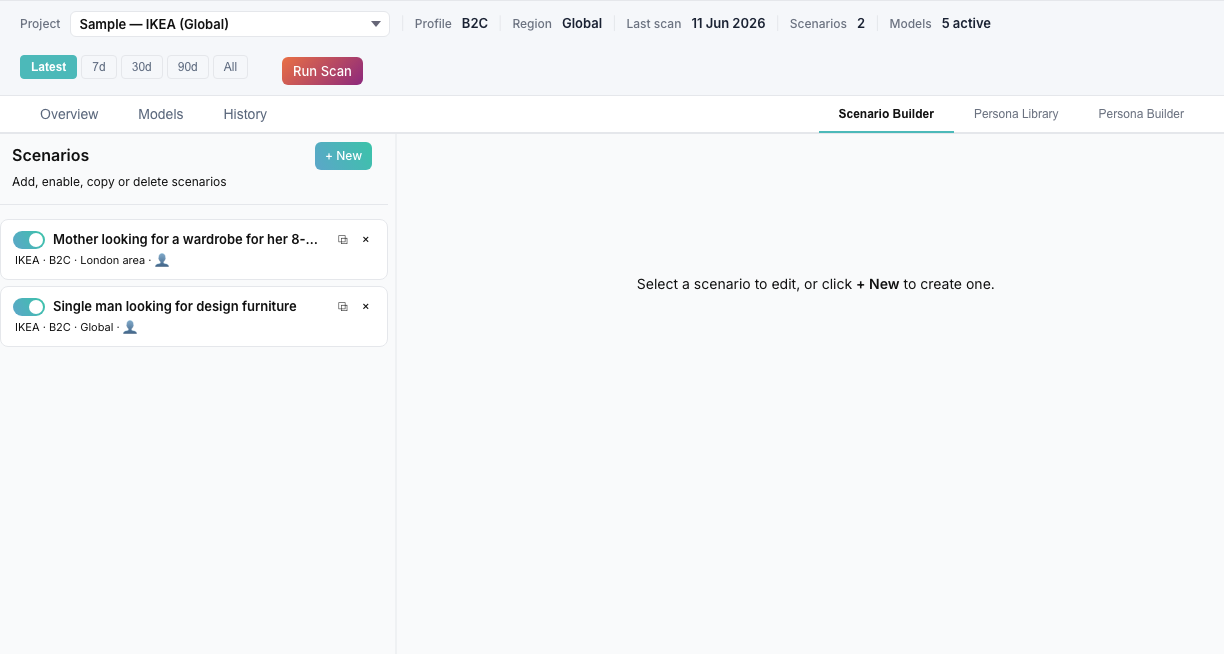
Scenario Builder with filled form and scenario list on the left.
Recommendation: Start with 3–5 scenarios that reflect real purchase or selection situations in your market.
11.4 Start a scan
- Return to the Overview tab in AI Recommendation
- Verify at least 1 scenario is active
- Click Start scan
- Wait until all scenarios × models have completed
📸 SCREENSHOT: playbook-34-rec-scan-progress.png
Recommendation scan with “Running scenarios…” progress.
11.5 Reading results
| Metric | Meaning |
|---|---|
| Overall score | Average across all runs |
| Spontaneous score | How often you appear spontaneously in top 5 |
| Assisted score | How you score as an explicit candidate |
| Recommendation gap | Assisted − spontaneous (acceptance effect) |
| Top-5 / Top-3 rate | Percentage of runs in top positions |
| Evoked set | Which brands AI mentions spontaneously |
| Model divergence | Spread between models |
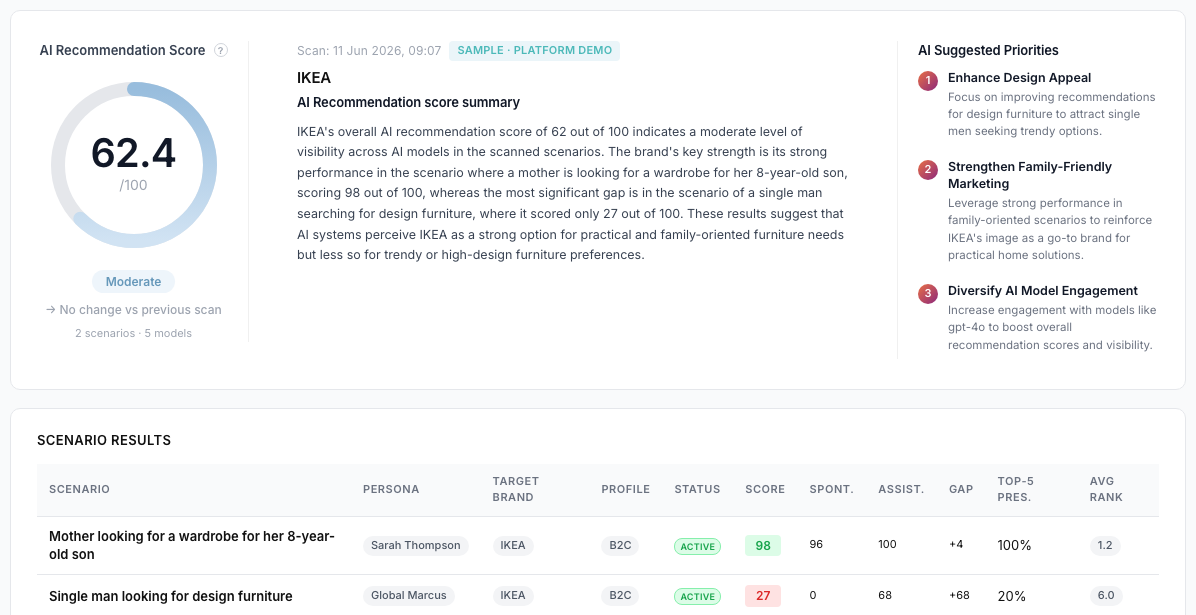
Recommendation overview with overall/spontaneous/assisted scores and evoked set.
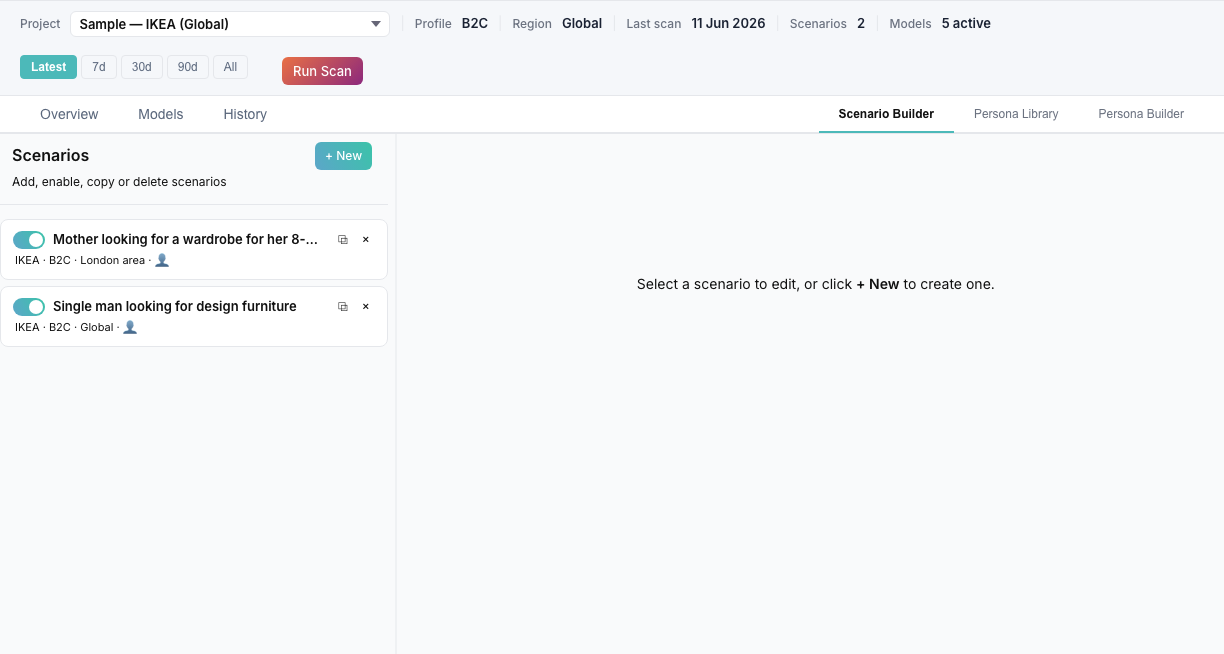
Results per scenario with ranking per model.
11.6 Plan-blocked on free scan
On the free scan plan, AI Recommendation shows a plan-blocked message with a link to Upgrade plan. Subscribe to AIRepScore Monitor to unlock scenario-based recommendation testing alongside the other modules.
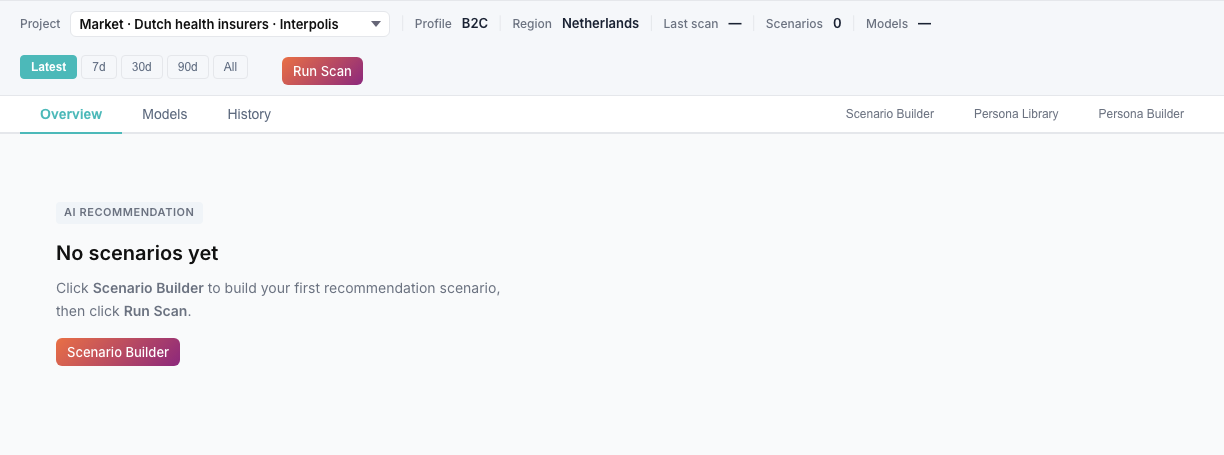
Recommendation plan-blocked with upgrade callout (free scan).
12. Overview module
Module: Overview
The overview combines all four modules in one dashboard — ideal for management reporting.
12.1 What do you see?
Four blocks stacked vertically:
- AI Credibility — hero score + top priorities
- AI Brand Perception — hero score + priorities
- AI Positioning — ranking + peer delta
- AI Recommendation — scores + priorities
At the bottom: Framework scores over time — trend line across all modules.
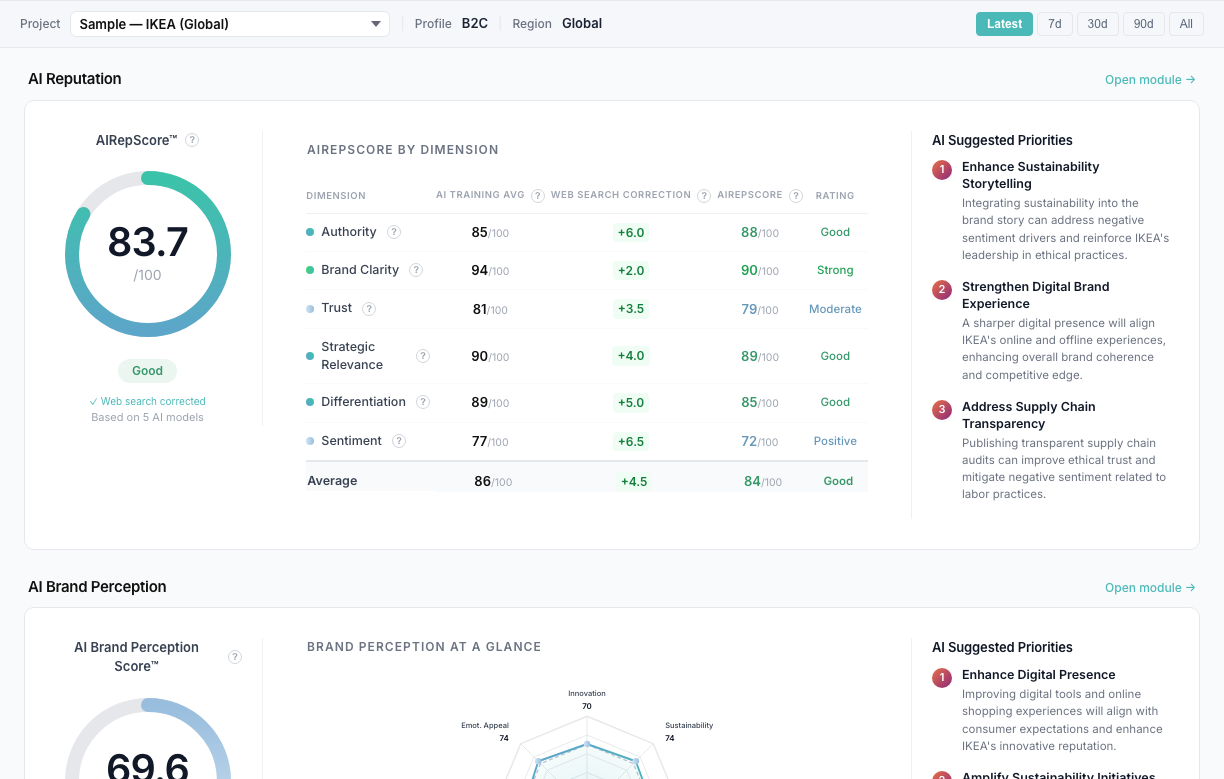
Overview page with all four module blocks populated.
12.2 When to use it?
- First check after login — quick status of your brand
- Board reporting — all layers on one screen
- Comparison over time — period filter at top (Latest / 7d / 30d / 90d)
Click Open module → on each block to go to the detail module.
13. Scan queue (scheduled scans)
Module: Scan queue
Use the queue to run scans automatically or on a schedule — useful for monthly monitoring.
13.1 Add a scan
- Go to Scan queue
- Fill in the form:
Step 1 — Which brand?
Select a project.
Step 2 — Which scans?
Check what your plan includes:
- AI Credibility ✓
- Brand Perception (Monitor / Enterprise)
- AI Recommendation (Monitor / Enterprise)
Step 3 — When?
| Option | Behavior |
|---|---|
| Immediately | Runs when you click Run queue |
| On specific day | Waits until that date |
| Repeat: monthly | Optional manual scheduling |
| Repeat: weekly | AIRepScore Monitor and Enterprise |
- Click + Add to queue
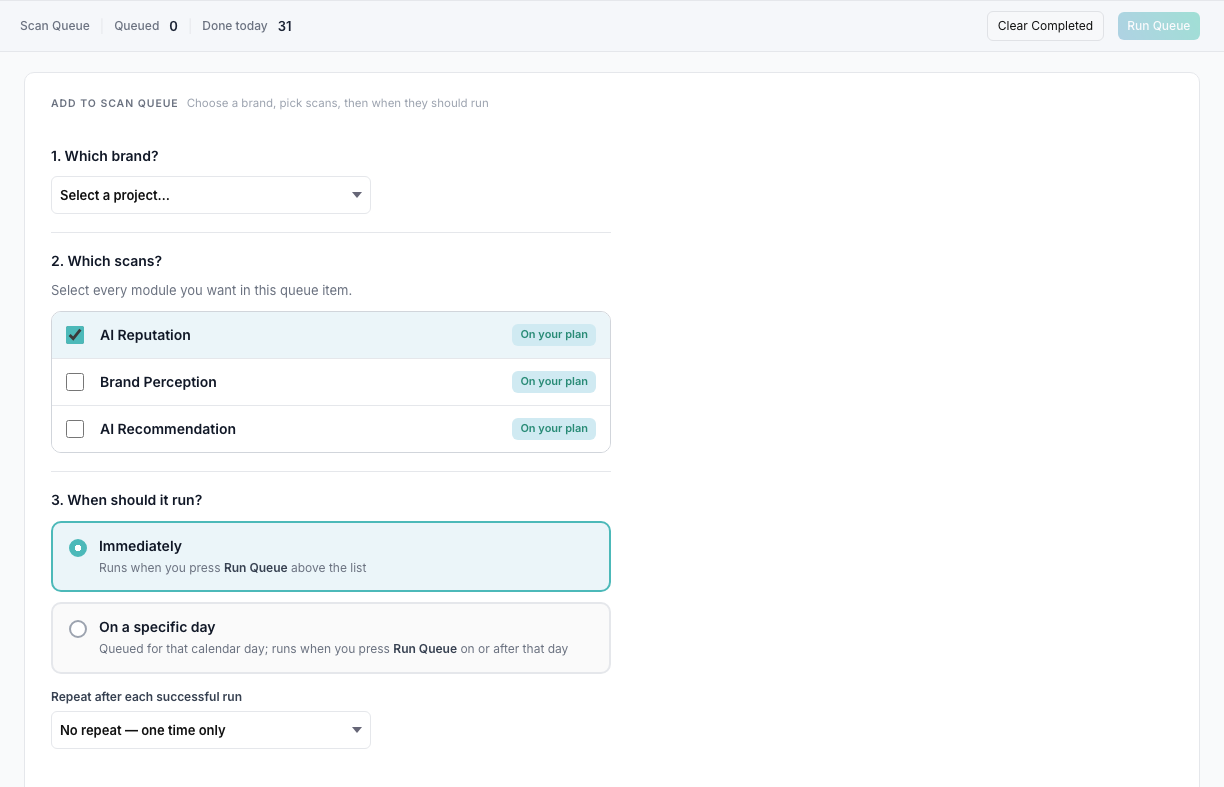
“Add to scan queue” form with AIR checked and monthly repeat.
13.2 Run queue
- Review the queue list
- Click Run queue
- Follow progress in the Currently scanning bar
📸 SCREENSHOT: playbook-40-scan-queue-running.png
Queue with running scan and progress bar.
13.3 Free scan — your entry scan
On the free scan plan:
- 1× AI Credibility — your first measurement of how AI sees your brand
- Upgrade to Monitor for weekly automated scans and all four modules
14. Profile & account
Route: Profile (via profile menu)
14.1 Profile page
| Section | Content |
|---|---|
| Name & email | Your account details |
| Role | Your access level within the organization |
| Language | EN / NL preference |
| Login | Passwordless OTP explanation |
📸 SCREENSHOT: playbook-41-profile.png
Profile page with name, email, role, and language choice.
14.2 Log out
Click Log out in the account menu. Your session ends immediately.
15. Upgrading to a paid plan
Route: Upgrade plan
15.1 Upgrade path
Free scan → AIRepScore Monitor → Enterprise| Step | What you get |
|---|---|
| AIRepScore Monitor | All four modules, 1 project, 3 users, 40 scans/month, weekly scheduling, KPI dashboard |
| Enterprise | Unlimited projects and users, shared workspace, partner access, custom SLA |
Legacy: Existing customers on Starter or Professional keep their current entitlements until migrated.
15.2 How to upgrade to Monitor
- Go to Upgrade plan
- Review the plan cards (Free scan, Monitor, Enterprise)
- Click Start Monitor
- Complete checkout via Stripe (monthly subscription; annual billing may be available)
- Your plan and module access update shortly after payment
Use Manage subscription on the same page to update your payment method, view invoices, or cancel.
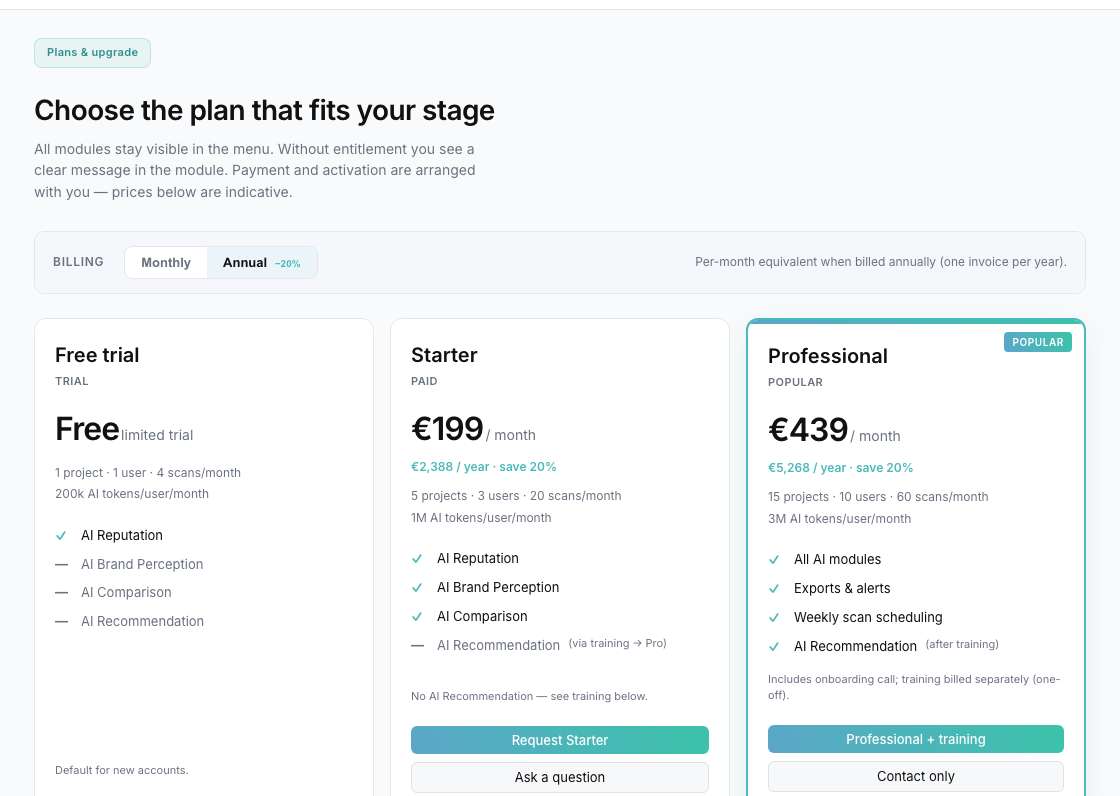
Monitor plan card with “Start Monitor” button.
15.3 Enterprise
For multiple brands, unlimited projects, or partner access:
- Go to Upgrade plan
- Click Book a meeting on the Enterprise card
- AIRepScore configures your workspace after scoping
15.4 What changes after upgrading to Monitor?
- Brand Perception, Comparison, and Recommendation become available immediately
- Up to 40 scans per month and weekly scheduling
- Invite up to 2 additional users (3 total) as viewers
- Email alerts after completed scans (when configured in Alerts)
16. Collaborating with colleagues
16.1 Free scan (solo)
- 1 user, no invites
- Full access to your own project and your one AI Credibility scan
16.2 AIRepScore Monitor — Viewer invites
On Monitor, you can invite colleagues to view results:
- Open a project in Projects
- Scroll to Invite viewer
- Enter your colleague's email address
- Click Send invitation
The colleague receives a registration link and can view results. Viewers cannot run scans or change project settings. Monitor includes up to 3 users total.
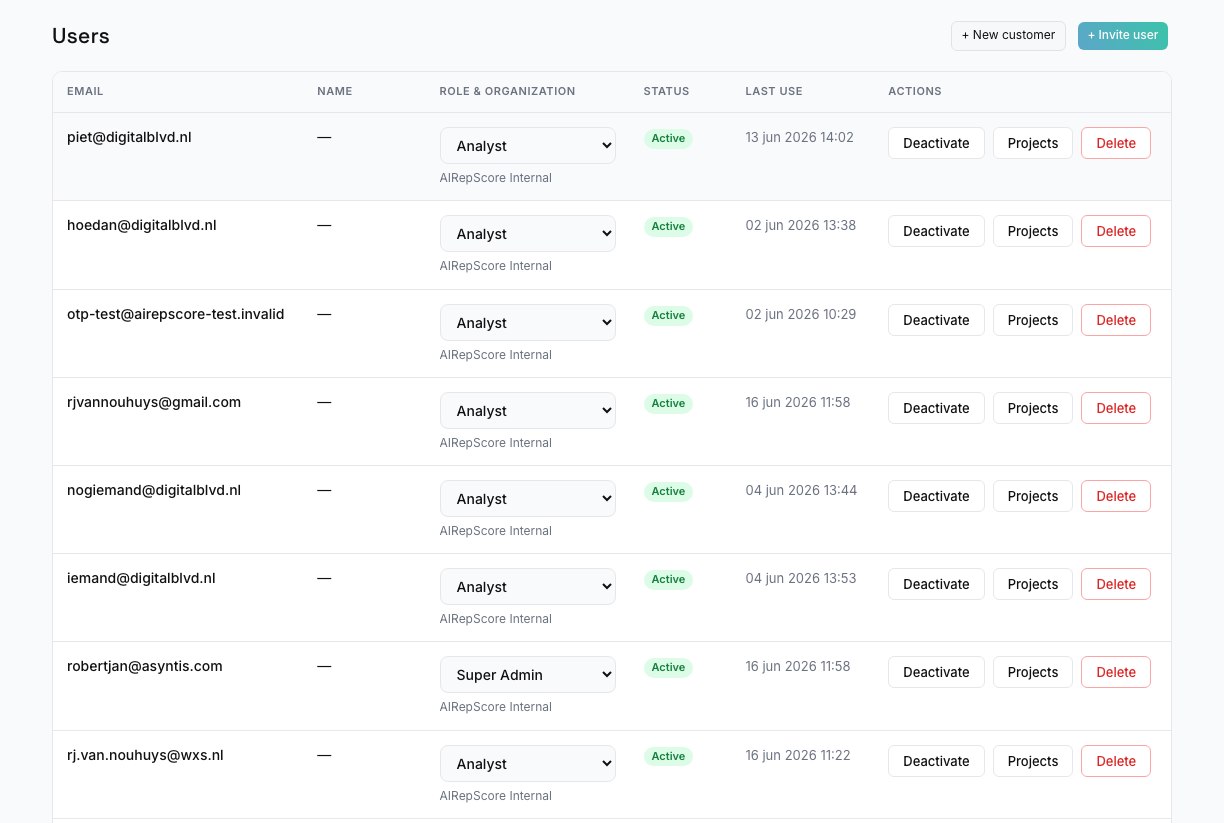
“Invite viewer” section in project detail.
16.3 Enterprise — Multiple users
On Enterprise, your organization can have multiple users with different roles (such as admin, analyst, and viewer). Contact AIRepScore to set up team access for your organization.
17. Sample projects (demos)
AIRepScore provides two read-only sample projects for all logged-in users:
| Project | Type | Purpose |
|---|---|---|
| Sample — Rijksmuseum | B2B, NL, culture | AI Credibility + Brand Perception + Comparison demo |
| Sample — IKEA | B2C, global retail | AI Recommendation demo |
17.1 How to use
- Select a sample project in the project dropdown (any module)
- Explore all modules with real scan data
- Start scan and editing are disabled (badge: Sample · view only)
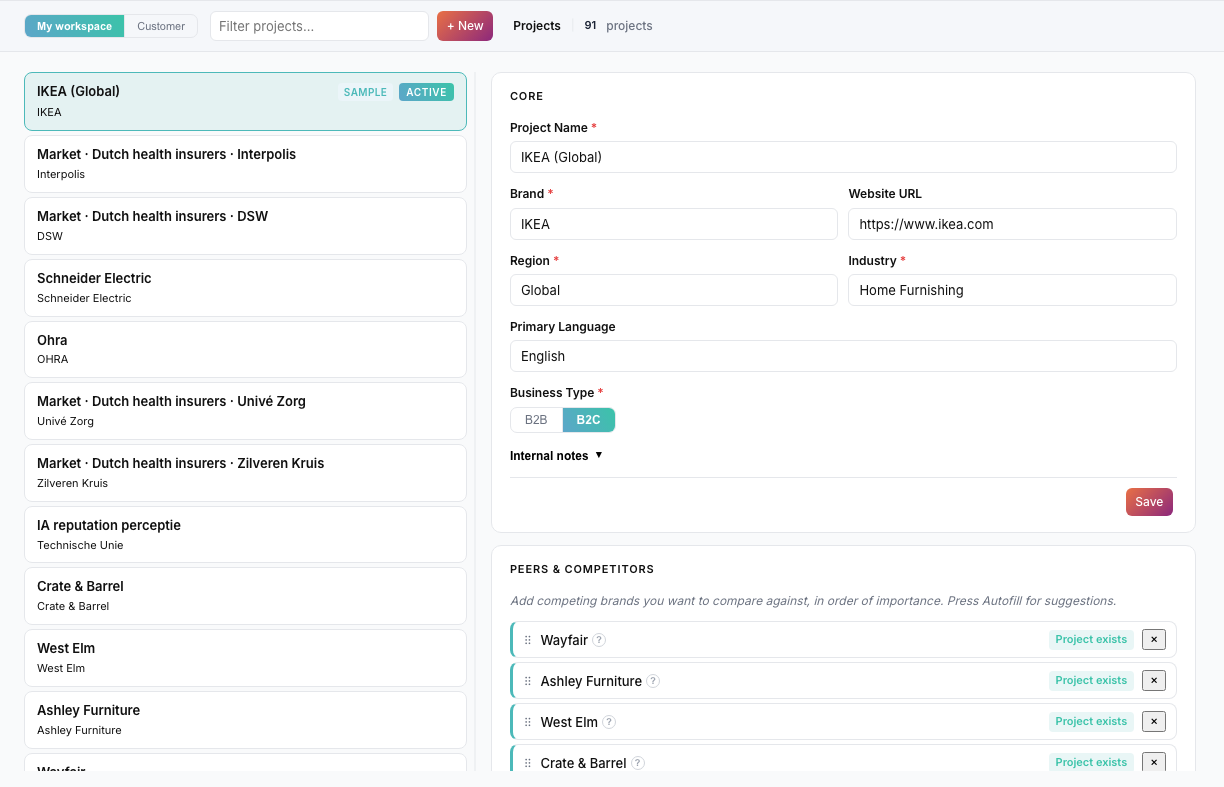
AI Credibility with “Sample — Rijksmuseum” and “view only” badge.
17.2 When to switch to your own project?
When you want to measure your own brand:
- Create your own project (Projects → + New)
- Activate it
- Select it in the project dropdown
18. Frequently asked questions & troubleshooting
Scans & limits
| Problem | Cause | Solution |
|---|---|---|
| “Start scan” greyed out / unavailable | Monthly scan limit reached | Wait until next UTC month or upgrade |
| Module shows upgrade message | Not included in your plan | Upgrade to AIRepScore Monitor — the message is intentional |
| Comparison empty | No peer scan data | Run AI Credibility + Brand Perception on primary project and peers |
| Recommendation: no scenarios | No active scenarios | Scenario Builder → set status to Active |
Login
| Problem | Solution |
|---|---|
| No OTP code received | Check spam; wait 2–3 min; avoid requesting codes too quickly |
| Registration requires invitation | Use your invite link or contact AIRepScore |
| Logged out after closing browser | Normal — log in again with OTP (session expires after 7 days) |
Interpretation & methodology
| Question | Answer |
|---|---|
| Why is my score different from what I expected? | AIRepScore measures AI perception, not your internal brand assessment or market performance. Scores reflect what AI models know from training data. Check project setup (Organization name, Region, B2B/B2C), Confidence, and Consistency for context. |
| Why do different models disagree? | AI models have different training data and knowledge coverage. Use the Consistency indicator and the Model Comparison Matrix to see where models align or diverge. |
| Why is Confidence low? | Low Confidence suggests AI models have limited or uncertain knowledge about your brand for that dimension. This often indicates the brand is underrepresented in training data — not that the score is “wrong.” |
| Why is Consistency low? | Low Consistency means models disagree significantly. Review individual model results in the Models tab. Ensure your Organization name is unambiguous and your sector/region settings are accurate. |
| Why do I see blocked modules? | All modules are visible by design so you understand the full framework. Blocked modules indicate features available on higher plans — not errors. |
| Why does Comparison show no data? | Positioning aggregates existing scans. Run AI Credibility and Brand Perception on your primary project and each peer, then configure peers in the Comparison module. |
| Why does AIRepScore use English scan output even when UI is Dutch? | Scan narratives and reasoning remain in English by design (v1) for consistency across models and markets. |
| Why is Perplexity included? | Perplexity is especially relevant for research, market analysis, product comparison, and business decision support — contexts where AI-driven brand discovery matters. It also powers Live Web Signal assessments. |
| Does AIRepScore measure SEO? | No. AIRepScore measures AI perception from model training data and optional web signals — not search engine rankings, website traffic, or SEO performance. |
| Can I use this as proof that my brand is better than competitors? | No. AIRepScore indicates how AI systems perceive brands — it does not prove objective superiority, quality, or market performance. Use Comparison as strategic intelligence, not as definitive competitive proof. |
| Are scores objective truth? | No — scores indicate AI perception at a point in time. Always interpret together with Confidence, Consistency, and context. |
19. Screenshot index
Overview of sample screenshots. Files are stored in docs/playbook-screenshots/ and served via /ui/assets/uploads/.
| # | Filename | Section | Audience | Content |
|---|---|---|---|---|
| 01 | playbook-01-framework-layers.png | §1 | External | Framework diagram / homepage |
| 02 | playbook-02-upgrade-plans.png | §2 | External | Upgrade plans page |
| 03 | playbook-03-invite-email.png | §3.2 | External | Invitation email |
| 04 | playbook-04-register-invite.png | §3.2 | External | Invite registration screen |
| 05 | playbook-05-verify-otp.png | §3.2 | External | OTP verification |
| 06 | playbook-06-login.png | §3.3 | External | Login screen |
| 07 | playbook-07-homepage-signup-cta.png | §3.4 | External | Homepage sign-up CTA |
| 08 | playbook-08-welcome-modal.png | §4.1 | External | Welcome popup |
| 09 | playbook-09-app-shell.png | §4.2 | External | Full app layout |
| 10 | playbook-10-sidebar-nav.png | §5.1 | External | Sidebar navigation |
| 11 | playbook-11-context-bar.png | §5.2 | External | Scan module context bar |
| 12 | playbook-12-language-switch.png | §5.3 | External | Language selector |
| 13 | playbook-13-projects-empty.png | §6.1 | External | Empty projects page |
| 14 | playbook-14-project-create-core.png | §6.2 | External | New project form |
| 15 | playbook-15-project-active.png | §6.3 | External | Active project in list |
| 16 | playbook-16-peers-competitors.png | §7.1 | External | Peers & Competitors |
| 17 | playbook-17-settings-models.png | — | Internal | Model selection settings |
| 18 | playbook-18-settings-lws-slider.png | — | Internal | LWS correction slider |
| 19 | playbook-19-air-scan-progress.png | §8.2 | External | AIR scan progress |
| 20 | playbook-20-air-overview-hero.png | §8.3 | External | AIR overview hero |
| 21 | playbook-21-air-dimension-matrix.png | §8.3 | External | Dimensions + matrix |
| 22 | playbook-22-air-sentiment-priorities.png | §8.3 | External | Sentiment + priorities |
| 23 | playbook-23-air-models-tab.png | §8.4 | External | AIR models tab |
| 24 | playbook-24-air-history.png | §8.5 | External | AIR history |
| 25 | playbook-25-bp-plan-blocked.png | §9.2 | External | BP plan-blocked |
| 26 | playbook-26-bp-scan-progress.png | §9.3 | External | BP scan progress |
| 27 | playbook-27-bp-overview-radar.png | §9.4 | External | BP radar + map |
| 28 | playbook-28-bp-associations.png | §9.4 | External | BP associations |
| 29 | playbook-29-cmp-configure-peers-modal.png | §10.2 | External | Comparison peers modal |
| 30 | playbook-30-cmp-overview-rankings.png | §10.3 | External | Comparison rankings |
| 31 | playbook-31-cmp-strengths-gaps.png | §10.3 | External | Strengths & gaps |
| 32 | playbook-32-rec-persona-library.png | §11.2 | External | Persona library |
| 33 | playbook-33-rec-scenario-builder.png | §11.3 | External | Scenario builder |
| 34 | playbook-34-rec-scan-progress.png | §11.4 | External | REC scan progress |
| 35 | playbook-35-rec-overview-scores.png | §11.5 | External | REC scores overview |
| 36 | playbook-36-rec-scenario-results.png | §11.5 | External | REC per scenario |
| 37 | playbook-37-rec-plan-blocked-training.png | §11.6 | External | REC plan-blocked |
| 38 | playbook-38-overview-all-modules.png | §12.1 | Both | Framework overview |
| 39 | playbook-39-scan-queue-add.png | §13.1 | External | Add to scan queue |
| 40 | playbook-40-scan-queue-running.png | §13.2 | External | Queue running |
| 41 | playbook-41-profile-token-usage.png | §14.1 | Both | Profile page (legacy filename) |
| 42 | playbook-42-upgrade-cta.png | §15.2 | External | Upgrade CTA |
| 43 | playbook-43-upgrade-training-banner.png | §15.3 | External | Training banner |
| 44 | playbook-44-invite-viewer.png | §16.2 | External | Invite viewer |
| 45 | playbook-45-team-access.png | — | Internal | Team access admin UI |
| 46 | playbook-46-sample-project-badge.png | §17.1 | External | Sample project badge |
Total: 46 sample screenshots (38 External, 2 Both, 6 Internal)
20. Quick-start checklist
Use this checklist for your first 30 minutes:
- [ ] Account created / logged in via OTP
- [ ] Welcome screen read
- [ ] Sample project Rijksmuseum explored (AI Credibility overview)
- [ ] Own project created (Core fields filled, B2B/B2C chosen)
- [ ] Project activated
- [ ] Peers added (at least 2–3 realistic alternatives)
- [ ] First AI Credibility scan started and completed
- [ ] Overall AIRepScore™, dimensions, Confidence and Consistency reviewed
- [ ] Top 3 improvement opportunities noted
- [ ] Overview module reviewed
- [ ] Upgrade plan page reviewed for next steps
Recommended follow-up timeline (after first scan)
| Week | Action |
|---|---|
| Week 1 | AI Credibility scan + share results with team |
| Week 2 | Upgrade to AIRepScore Monitor → Brand Perception scan |
| Week 3 | Set up peers + Comparison analysis |
| Week 4 | Schedule weekly scans via Scan queue |
| Month 2+ | Build Recommendation scenarios and monitor trends |
End of guide — AIRepScore™ User Guide v1.1
Questions? Contact us via the upgrade page or Knowledge Hub FAQ.